Versus Remap Windows Guide: Map Keyboard & Mouse to a Virtual Controller
Versus Remap on Windows: map keyboard and mouse inputs to a virtual Xbox or DS4 controller, apply the profile, and set Pause / resume and Hold to unlock before you lock mouse or keyboard capture.
Direct answer: In Versus Remap on Windows, treat keyboard and mouse as physical input sources that send actions to a virtual controller your game can see (Xbox 360 / XInput, PlayStation 4 / DS4, or Generic — which currently shares the DS4-compatible path). Open Mappings, choose Toetsenbord of Muis, set Physical input and Virtual output, Save mapping, then Save & apply and check Input test (Virtual). Before you lock the mouse or keyboard for play, open Settings, then Mouse & keyboard capture, set Pause / resume and Hold to unlock, lock only what you need, and test both escape controls. This build does not provide virtual keyboard or mouse output.
This guide covers keyboard and mouse mapping plus safe capture. Pad setup, macros, stick and trigger tuning, and DualSense-as-Xbox each have their own guide, linked below.
What “keyboard & mouse mapping” means here
Remap’s product page is blunt: you can change what controller buttons, keyboard keys, and mouse inputs do on Windows, and you can map physical keyboard and mouse inputs to virtual-controller actions. Games see a virtual Xbox or DualShock 4 pad — not a fake keyboard stream.
That direction matters:
- In scope: mouse to virtual stick, mouse clicks to virtual buttons or triggers, and keys to virtual buttons. Macros have their own guide.
- Out of scope this build: virtual keyboard output, virtual mouse output, Switch Pro virtual pad, Xbox Elite back paddles, Xbox rumble forwarding, and Bluetooth rumble.
If your problem is “DualSense should look like Xbox to the game,” read the DualSense to Xbox on Windows guide. If you still need Save & apply + four slots + one shift layer, finish USB pad, apply a slot, add one shift layer first, then come back.
Prerequisites
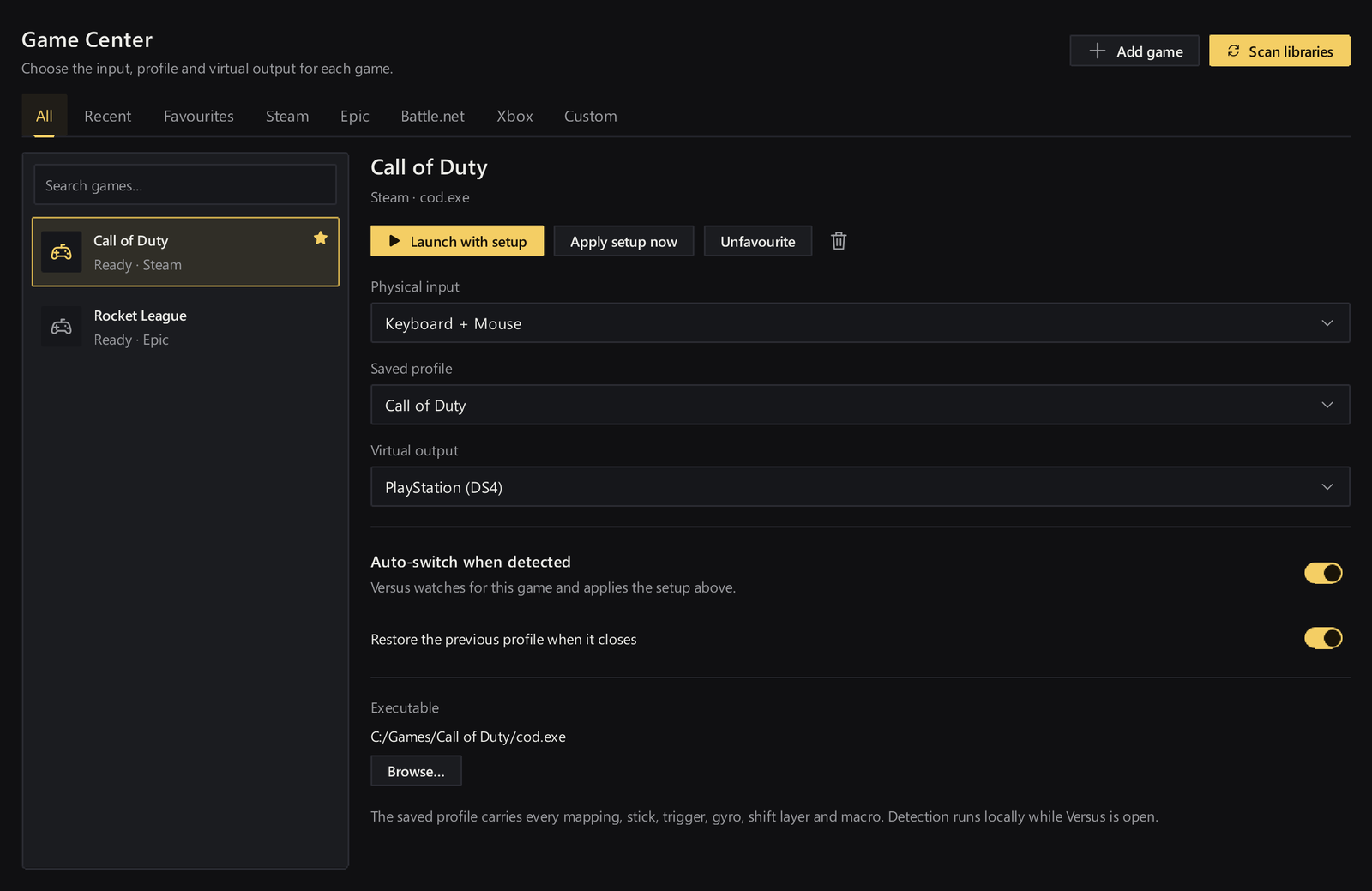
You need Remap on Windows 10 or 11, a Versus sign-in with Remap access, a Profiel, and a virtual output the title expects:
- PlayStation 4 — DS4 output
- Xbox 360 — XInput output
- Generieke controller — currently shares the DS4-compatible path; it does not create a separate generic virtual device
Keyboard and mouse work as physical sources into that virtual pad. DualSense and Xbox One / Series over USB are the supported physical pads.
Saving a profile file is not enough. Save & apply assigns the profile to a quick slot and asks the mapping service to use it — wait for Applied to Slot, then verify in Input test.
Start from the Remap product page and setup guide. There is no direct download link in this guide.
Map a keyboard or mouse input
- Openen Mappings.
- Choose Toetsenbord of Muis for the source you want to edit (use Gamepad when the source is the pad).
- Select an existing keyboard or mouse mapping — or the control you want to change — to open Edit mapping.
- Confirm Physical input, then pick the Virtual output action the virtual pad should send.
- Select Save mapping to keep the edit (or Annuleren to leave it unchanged).
- Select Save & apply so the mapping service actually runs the profile.
- Openen Input test, then Virtual, and confirm the virtual pad receives what you expect before you jump into a match.
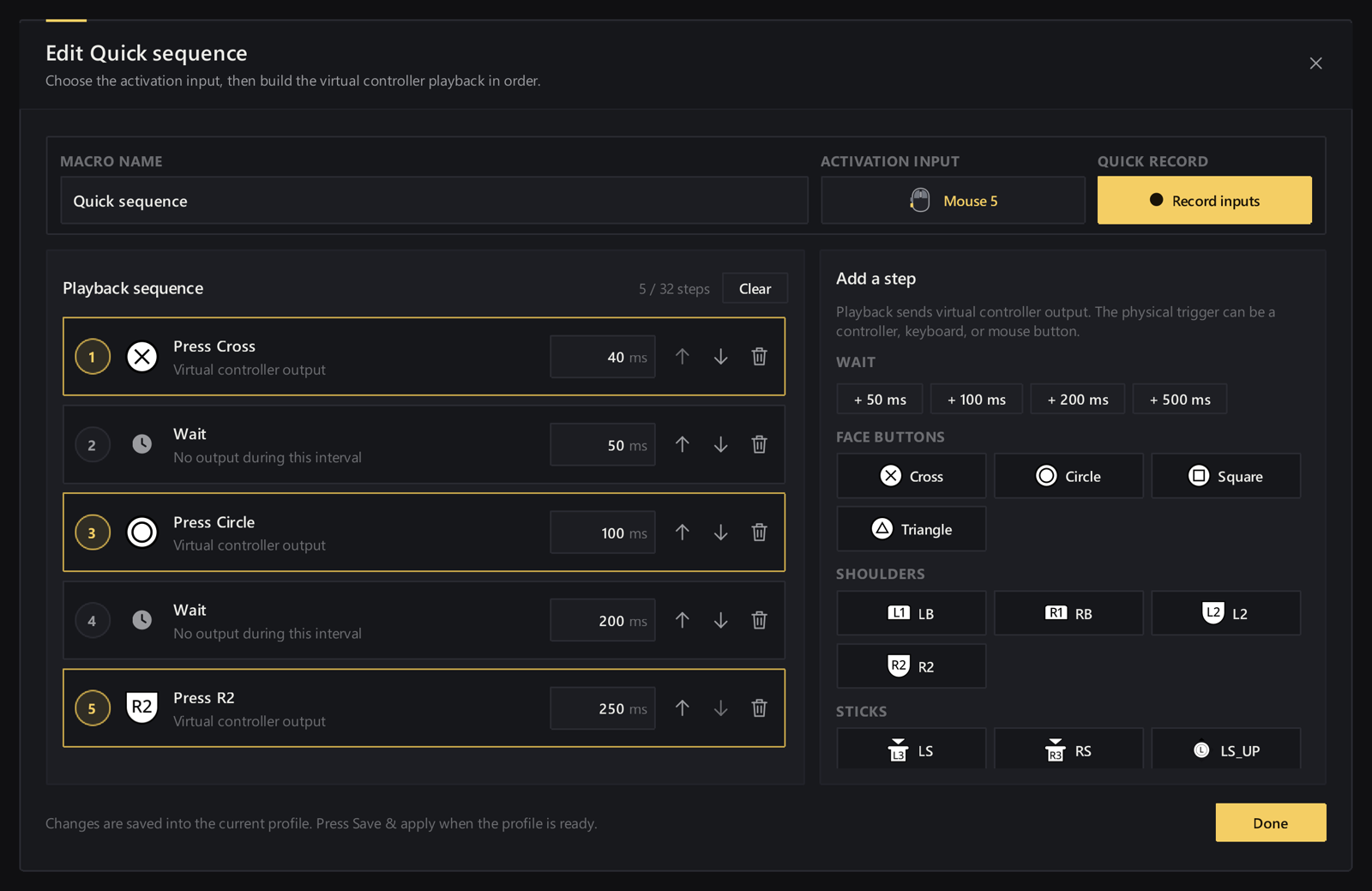
Sticks and triggers keep analog behavior; fine feel work lives under Dashboard, then Tune (see the Tune sticks, triggers & gyro guide). A second action on one button is Alternate controls. An ordered sequence is a macro — use the short macro post instead of stuffing a 12-step chain into this walkthrough.
Product patterns that fit this lane:
- Mouse to stick for look and aim on the virtual pad
- Clicks on a trigger when you want mouse buttons to fire virtual triggers
- Keys as sources for virtual buttons
Capture safely before you lock anything
Mouse and keyboard mappings send supported inputs to the virtual controller. If you lock the mouse or keyboard without an escape hatch, you can trap yourself out of the desktop.
Do this before locking:
- Openen Settings, then Mouse & keyboard capture.
- Review Pause / resume — one press pauses capture; another resumes it.
- Review Hold to unlock — physical input is available while you hold the key; capture returns when you release it.
- Choose keys that do not fight important game actions.
- Check the displayed assignments in Remap — do not copy someone else’s shortcuts blindly.
- Enable Lock mouse of Lock keyboard only for the inputs you intend to capture.
- Save & apply.
- Test both escape controls before you play.
If mouse aiming feels too abrupt or too slow, open Mouse aim settings, change a little at a time, apply again, and re-test in Input test (Virtual).
Keep capture unlocked while editing or troubleshooting. Lock when the profile is ready — not while you are still clicking through Mappings.
Quick checks when it feels wrong
Work one layer at a time:
- Input test (Physical) — does Remap see the key or mouse move at all?
- Profile, source type (Keyboard / Mouse / Gamepad), and quick slot — are they the ones you meant?
- Save & apply — read errors; a saved file is not an applied mapping.
- Input test (Virtual) — if Virtual works but the game does not, check the game’s controller picker and Remap’s virtual output.
- Double inputs — another controller-mapping app may still be running; fix that before you keep flipping capture locks.
For support, include controller model (if any), USB connection, virtual output, selected slot, the exact error, and whether Physical and Virtual respond. Share a screenshot or exported profile if useful — never include your password or account tokens.
FAQ
Can Remap turn my keyboard into a virtual keyboard the game sees?
No. Keyboard and mouse are physical input sources for virtual-controller mappings. This build does not provide virtual keyboard or mouse output.
Which virtual outputs can my KBM profile feed?
PlayStation 4 (DS4), Xbox 360 (XInput), or Generieke controller. Generic currently shares the DS4-compatible path and does not create a separate generic virtual device.
Do I need a DualSense or Xbox pad to use keyboard and mouse mapping?
No. Remap can emulate a controller with keyboard and mouse, and keyboard and mouse can be mapping sources on their own, feeding the virtual output you choose. For physical pads, Remap supports DualSense and Xbox One / Series controllers over USB.
What are Pause / resume and Hold to unlock?
They are your escape controls under Settings, then Mouse & keyboard capture. Pause/resume toggles capture with successive presses. Hold to unlock gives you physical desktop input only while the key is held. Set and test both before enabling Lock mouse or Lock keyboard.
Why didn’t my controls change after I saved?
Saving stores edits. Toepassen activates them on a quick slot. Select the right device/source context, apply, then verify in Input test (Virtual).
Are Xbox Elite paddles or Switch Pro virtual output supported?
Not in this build. Xbox Elite back paddles, virtual Switch Pro output, and Bluetooth rumble are unsupported. DualSense Edge paddles are supported and covered in the separate Edge guide.
Can I buy a Remap plan at checkout right now?
Online purchases are not enabled yet, so choosing a plan does not take a payment. Compare machine allowances on the Remap pricing section and use your account Billing for an existing plan.
Next steps
- Set virtual output + apply a slot (apply / slot / shift guide).
- Map one Keyboard key and one Mouse click to virtual actions; verify in Input test (Virtual).
- Configure Pause / resume and Hold to unlock, then lock only what you need.
- When you want sequences or analog feel, branch to the short macro of Tune guides.
Product: Versus Remap Docs: Change what a button sends · Mouse and keyboard capture