



01
Click a control
Pick a button, stick, or trigger. Assign a key, mouse button, or another pad input.
Official partnerSweatVPN

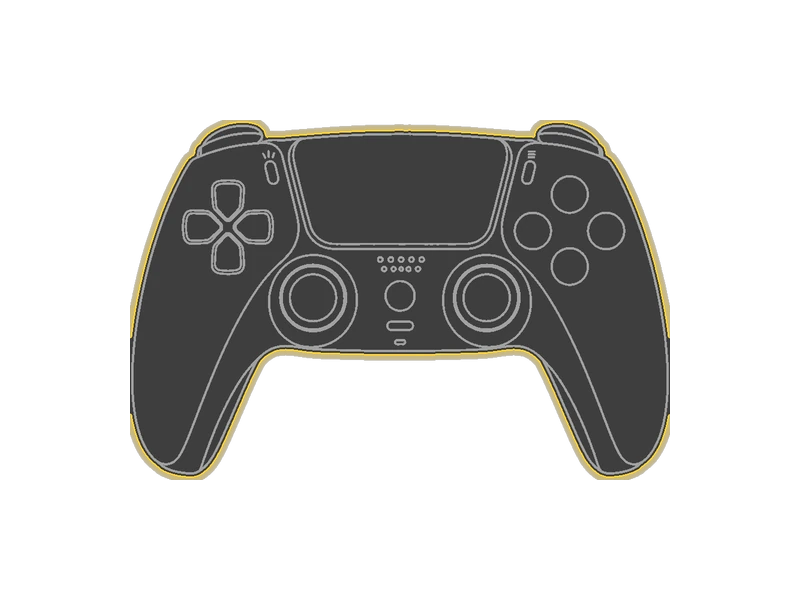
Controller remapper for Windows. Map a DualSense or Xbox pad to keyboard and mouse, reassign buttons, and turn an ordinary stick into turbo or a macro. Four slots. Shift layers on top of Main.
Official partnerSweatVPN
Mapping for gamepads and standard input. Emulate a controller with keyboard and mouse, disable a key, or build a macro with pauses and delays.
Hold or toggle Shift to jump layers so the pad, keyboard, and mouse work as one profile.
Community loadouts
Original profile ideas for the remapper. Import JSON in the Windows app, then talk the layout on the forum.
 Modern Warfare 4Forum loadout
Modern Warfare 4Coming October 23, 2026
Modern Warfare 4Forum loadout
Modern Warfare 4Coming October 23, 2026
 Apex LegendsForum loadout
Apex LegendsForum loadout
Apex LegendsForum loadout
 FortniteForum loadout
FortniteForum loadout
FortniteForum loadout
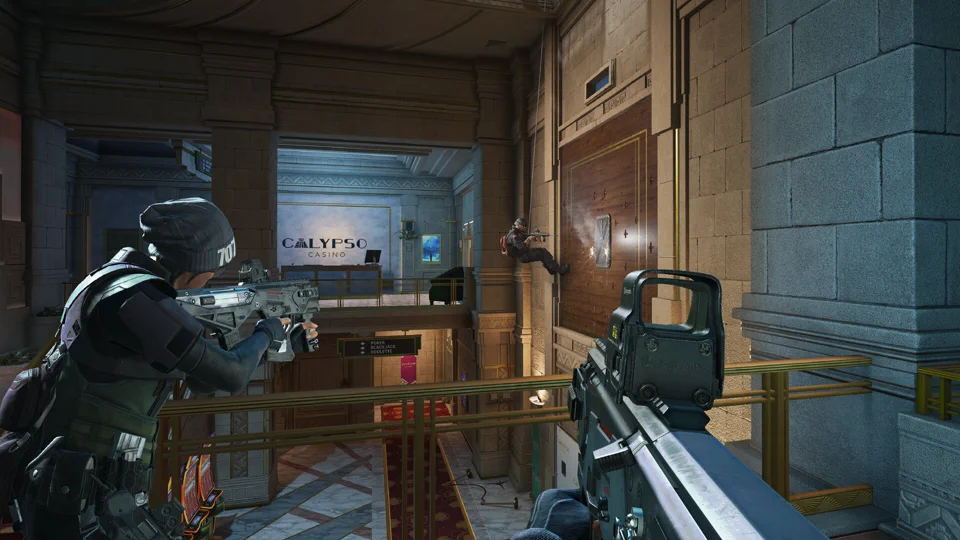 Rainbow Six SiegeForum loadout
Rainbow Six SiegeForum loadout
Rainbow Six SiegeForum loadout
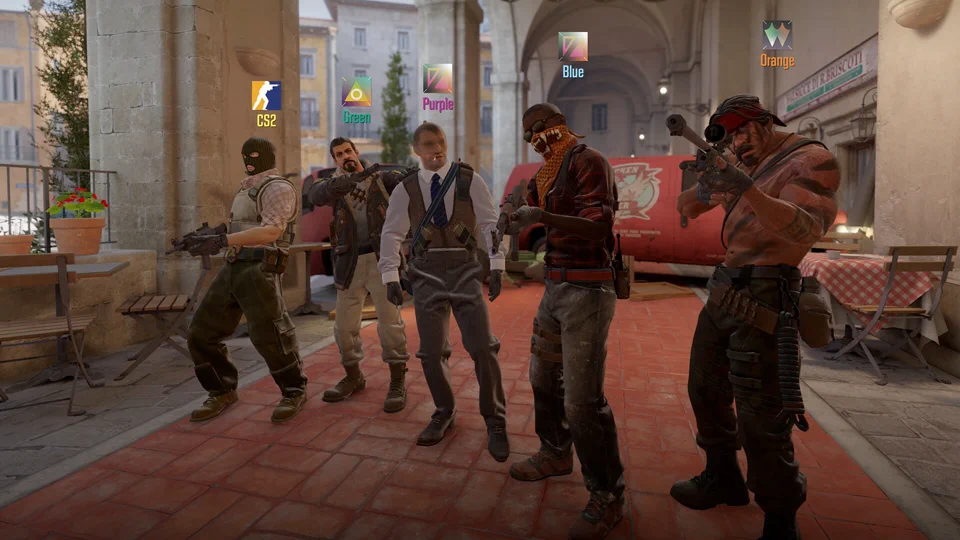 Counter-Strike 2Forum loadout
Counter-Strike 2Keyboard + mouse
Counter-Strike 2Forum loadout
Counter-Strike 2Keyboard + mouse
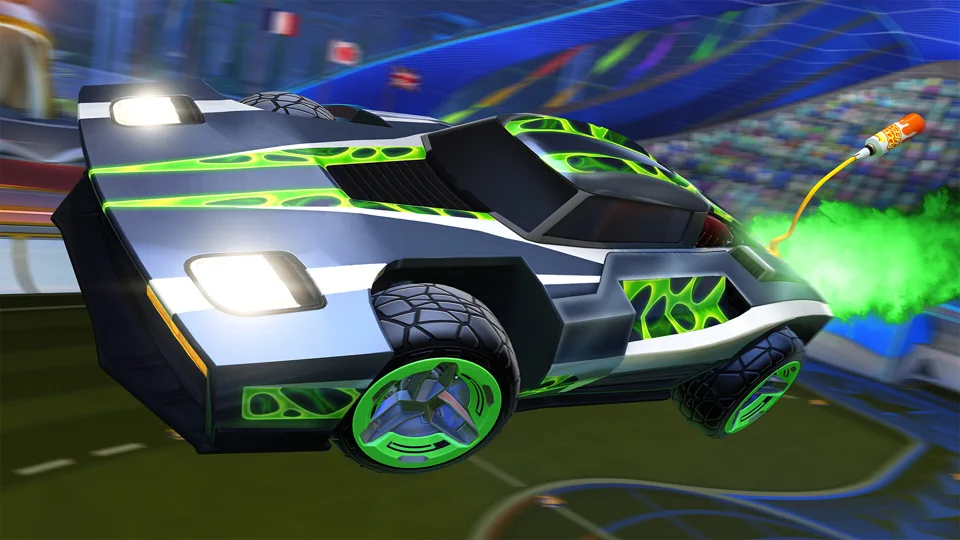 Rocket LeagueForum loadout
Rocket LeagueController profile
Rocket LeagueForum loadout
Rocket LeagueController profile
Game names and artwork belong to their respective publishers. Versus is independent and is not sponsored or endorsed by Activision, EA, Epic Games, Ubisoft, Valve, or Psyonix. Use community profiles in accordance with each game’s rules.
About
Map a pad to keyboard and mouse, or the other way. Games see a virtual Xbox or DualShock 4 — not a wrapper around another remapper. Four slots. Shift layers on Main. Turbo, toggle, and macros on the same binding.
Pick a button, stick, or trigger. Assign a key, mouse button, or another pad input.
Hold or toggle a jump button. Empty layer buttons inherit Main so you only set what changes.
Four slots on the device. Titles that want Xbox or DualShock 4 see the virtual pad.
DualSense
Buttons, sticks, touchpad zones. Output Xbox, DualShock 4, or generic.
Learn more Xbox
Xbox
Xbox One and Series in. Virtual Xbox out for titles that want XInput.
Learn more Keyboard
Keys as sources or targets. A key can jump a shift layer or fire a macro.
Learn more
Mouse
Stick to mouse, mouse to stick, clicks on a trigger. Shift swaps a mouse layer.
Learn moreMapping
Hover a control
Selected input
In the Windows app
Build your mappings, save your game setups, and bring your controller inputs onto your stream.

Build your sequence in the macro editor. Choose the activation input, add controller presses and wait steps, then set the timing for each one.
Move a step, change its duration, or record inputs directly. The sequence stays with your profile.
Explore the controls
Choose the input, saved profile, and virtual output for each game. Turn on automatic switching and Versus loads that setup when it detects the game.
You can also restore your previous profile when the game closes. Detection runs locally while Versus is open.
Set up your first game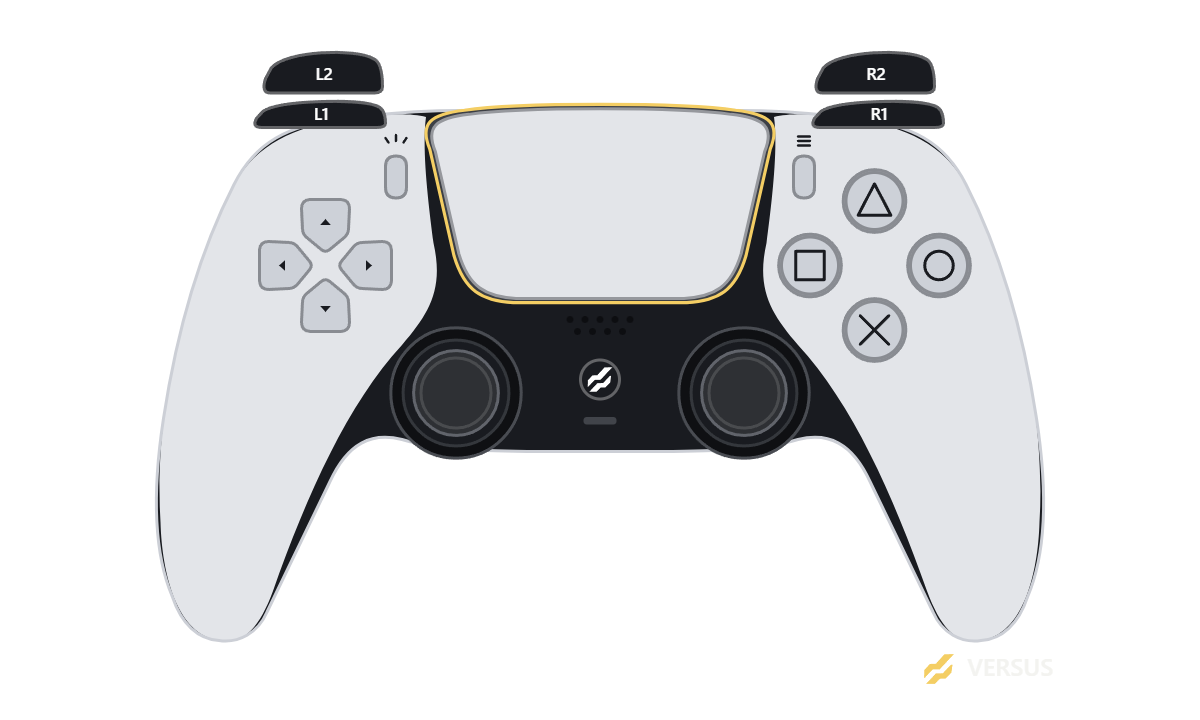
Included in Remap
Let viewers see your buttons, sticks and triggers as you play. Choose a DualSense, Xbox or controls-only layout, then adjust colors, labels, control positions and transparency to suit your stream.
Use Add to OBS for the local setup helper, or copy the Browser Source URL into Streamlabs or another compatible broadcast app. Choose the input before mapping or the virtual controller output.
Keep Remap and your broadcast app running on the same Windows PC. The overlay is part of Remap, with no separate overlay purchase.
Set up your stream overlayMain plus three layers. Hold or toggle. Unset buttons inherit Main.
Learn moreRecord a sequence and play it from a button, with pauses and delays.
Learn moreRepeat while held, or toggle on tap. Same binding as a normal map.
Learn moreOutput Xbox or DualShock 4. Generic is also available.
Learn moreZones and curves on analog controls so aim and fire feel right.
Learn moreSteam and Epic games for profile switch when you launch a title.
Learn more
Save a complete mapping setup as a profile, then assign it to one of four quick slots. Choose a slot and Apply when you want to use it.
Inside each profile, Main plus three shift layers let you change controls with a hold or a toggle. Unset layer buttons inherit Main.
Switch Pro virtual pad, Xbox Elite back paddles, and Bluetooth rumble are not in this build.
How slots workPricing
Controller remapper for Windows. Choose a machine variant and billing duration.
1 seat
One player. One Windows box.
$39/year
$3.25 / month billed yearly
Most used
2 seats
2 machines. Invite a friend or use both yourself.
$59/year
$4.92 / month billed yearly
3 seats
3 machines. Share with up to two friends.
$79/year
$6.58 / month billed yearly
Best for teams
4 seats
4 machines. Share with up to three friends.
$99/year
$8.25 / month billed yearly
Plans apply per product. One machine per seat. Manage invitations and machine access in Seats & devices. You never need to share your password.
What you need to know about Remap, your account, and sharing a plan.
Versus Remap lets you change what your controller buttons, keyboard keys, and mouse inputs do on Windows. Save different control layouts as profiles, assign keyboard shortcuts to a controller, or use a DualSense as a virtual Xbox controller for games that expect Xbox input.
Start with the guide to remapping to see how inputs, profiles, and output work together.
The current build is for Windows 10 and 11. It supports DualSense and Xbox One / Series controllers connected over USB, plus keyboard and mouse mapping.
Support varies by feature: Xbox Elite back paddles, virtual Switch Pro output, and Bluetooth rumble are not currently supported. Check the device guides for your setup before choosing a plan.
Start with the Remap setup guide. Remap and VPN have separate plans; Mate, Aim, Clipper, Audio and Boost are free apps. Each product page explains its supported features and Windows setup.
The difference is the number of machine seats: Solo has 1, Duo 2, Trio 3, and Squad 4. One seat is for one PC. Use spare seats for your own PCs or invite friends to share the plan.
Each plan belongs to one product; a Remap plan does not include the other Versus software. The purchaser manages billing and the group’s seats.
Ask your friend to create their own Versus account. Open Seats & devices, enter their exact username, and choose Invite friend. They accept the invitation from the same section in their own account.
A pending invitation reserves one seat for seven days. Both accounts can see the plan’s capacity and expiry. Passwords, billing details, profiles, and messages stay private.
In Seats & devices, Unlink PC removes a machine’s connection while keeping the seat assigned to its account. The purchaser can remove a member or release an extra seat, then invite someone else. Removing a member does not delete their account.
The current Remap desktop source uses this connection flow on startup and rechecks its short server lease while it runs. The signed public installer is still being prepared.
Online purchases are not enabled yet, so choosing a plan does not take a payment. You can compare the machine allowances in Pricing and check an existing plan in your account’s Billing section.
For a charge, missing purchase, cancellation, or refund question, contact support for a review. Never include your password or full card details.
Yes. Remap includes a customizable controller overlay with DualSense, Xbox and controls-only layouts. Show input before mapping or the virtual controller output, and adjust colors, labels, control positions and transparency.
Use Add to OBS to open the local setup helper, or add the copied URL as an 800 × 480 Browser Source in Streamlabs or another compatible broadcast app. Keep Remap and the broadcast app running on the same PC, with a profile applied. Follow the stream overlay guide for setup.
Saving stores your edits; Apply activates them. Select the correct device, choose one of its four slots, and apply the saved profile. Then test a simple button assignment.
If nothing changes, check the output type and follow the troubleshooting guide. Keep any error message so support can help.
Yes. Shift layers give buttons alternative assignments without replacing your normal controls. For example, a button can perform its usual action on Main and control volume while you hold L1 to use another layer.
A profile has Main plus three shift layers. Assignments you leave empty on a layer keep their Main action. See the shift-layer guide for an example.
Yes. Export a profile as a JSON file from Remap, then keep a copy or share that file. The other person can import it into their own app. Check the intended controller and output before applying an imported profile.
Sharing a profile does not share your account or subscription. The profile guide explains how to create and save your own layout.
Open Support to search the guides or ask the support assistant. If you still need help, sign in and create a private ticket for the support team. The assistant can also prepare a conversation for handoff; you review it before sharing.
Include your controller model, Windows version, what you tried, and the exact error. You can follow staff replies in Tickets. Help articles are available without signing in.
Find a setup guide or ask the support team about your account.
Get started with Versus Remap for Windows. Download the installer from the downloads page and find setup instructions in Help.

