Use a DualSense as an Xbox controller on Windows
Connect over USB, choose virtual Xbox output, and apply your first profile. A practical guide to the controller your game actually sees.
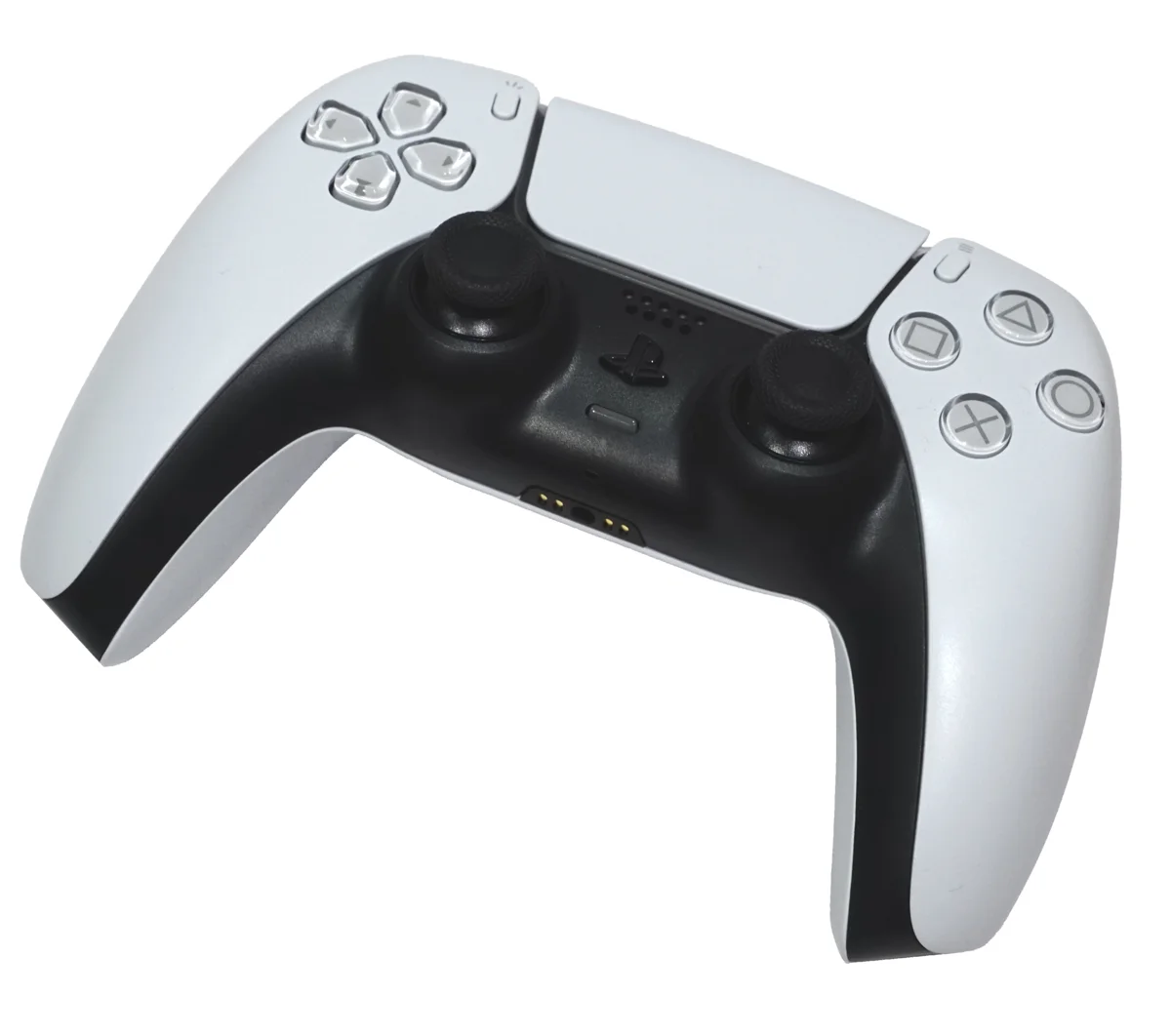
A DualSense and an Xbox controller do not need identical hardware to send a game the same button inputs. With Versus, the physical DualSense is the input device; a virtual Xbox controller is the output Windows passes to a compatible game. Keeping those two roles separate makes setup much easier to diagnose.
This guide covers the USB path on Windows 10 and 11. Start with a simple button map, confirm that the game receives it, and only then add shift layers or other assignments. The goal is one predictable controller, not several input tools competing over the same pad.
Before you start
- Connect a DualSense with a USB cable that carries data, not only power.
- Follow the current Versus setup guide. The Windows app has driver and service requirements; this article is not a substitute for those instructions.
- Keep a keyboard or mouse available so you can undo a mapping.
- Use a game menu or a noncompetitive test scene for your first checks.
Understand input, profile, and output
There are three parts to the route. The input is the device in your hands. The profile contains your assignments. The output is the controller or keyboard/mouse input the game receives. Changing the output does not physically change the pad, and saving a profile does not automatically apply it.
| Part | In this setup | What to check |
|---|---|---|
| Physical input | DualSense over USB | Versus can see the connected controller |
| Profile | Your button assignments | Start with ordinary one-to-one bindings |
| Virtual output | Xbox | The game receives a compatible controller |
| Active slot | One of four device slots | The intended profile has been applied |
Microsoft documents XInput as an API applications use to read compatible controllers. That is why the identity exposed to the game matters. It does not mean every game supports every controller feature, or that all games handle controller and mouse input together.
Set up your first profile
- Connect the controller and confirm that Versus lists the physical DualSense.
- Open or create a profile for the game you want to configure. Give it a name you will recognize later.
- Keep the physical identity as DualSense and choose virtual Xbox as the output type.
- Begin with the usual face buttons, D-pad, sticks, and triggers. Avoid changing several assignments at once.
- Save the profile, select the intended device slot, and press Apply.
- Open the game's menu and test one button, both sticks, and both triggers before adding more mappings.
Xbox-style prompts can be an expected result: the game is receiving Xbox output even though you are holding a DualSense. Read prompts by button position while testing rather than assuming the physical label will match.
If the game sees two controllers
A single physical pad can produce duplicate actions when the game receives both the original device and a virtual controller, or when more than one remapper handles the input. A menu moving two entries per press is a useful symptom, but it is not proof of one specific cause.
Close competing remappers for the test and check the game's controller configuration. Confirm the intended physical-device hiding behavior in your Versus setup before changing unrelated settings. The double controller input guide walks through this one variable at a time.
If your changes do not reach the game
First verify the active slot. A saved edit may not be the profile currently applied to the device. Apply it again and test a single obvious change. If the app saves successfully but no remapping happens, check the mapping service rather than repeatedly rebuilding the profile.
The current app explicitly separates saving from applying: a profile can be saved while the mapping service is unavailable. See saved versus applied profiles for a diagnostic checklist.
Where to go next
Once the baseline works, add one change at a time. A shift layer can give selected controls a second assignment while leaving the rest of Main intact. Export a copy of a useful profile before a larger experiment so you have a known configuration to return to.
Does virtual Xbox output give me every DualSense feature?
No. Output identity describes the interface the game receives. It is not a promise that adaptive triggers, touchpad behavior, audio, or rumble will work identically across devices and games. Check the current build limitations before relying on a feature.
Can I use this guide for Bluetooth?
This article deliberately covers USB. Do not infer Bluetooth feature support from a successful wired test. The Help Center records the current scope.