Versus Remap Game Center: Per-Game Profiles and Autodetect
Set each game’s input, saved Remap profile, and virtual output once. Optional automatic switching when Remap detects the title, restore previous profile on close — detection local while Remap is open.
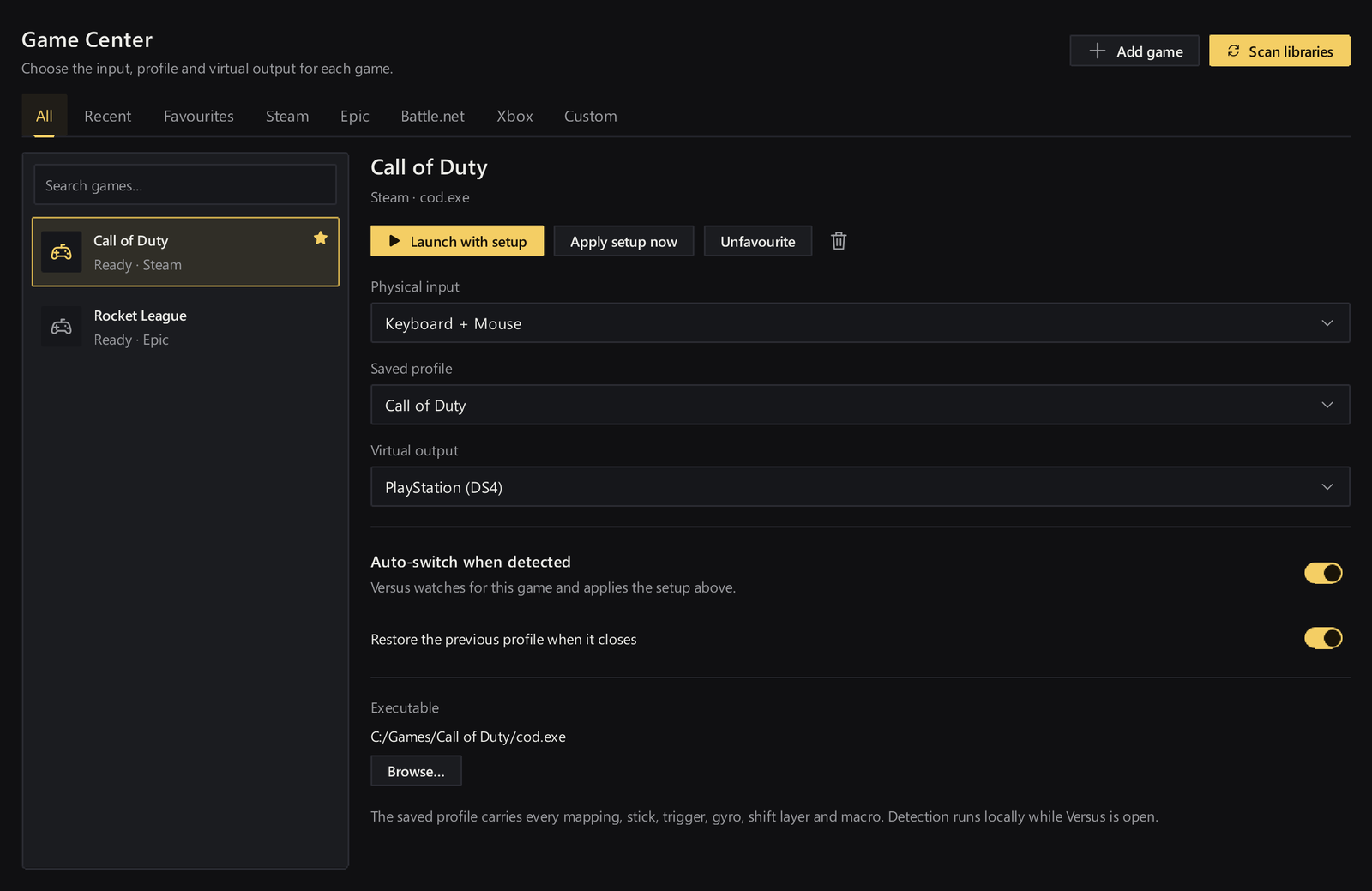
Direct answer: Versus Remap’s Game Center lets you set each game up once: choose the Invoer, the saved profile, and the virtual output that title should use. Turn on automatic switching and Versus loads that setup when Remap detects the game. You can also restore your previous profile when the game closes. Detection runs locally while Versus is open. The live Autodetect card covers Steam and Epic games for profile switch when you launch a title.
If you already know how to build a profile and Save & apply it to a quick slot, Game Center is the next layer: stop re-picking the same three settings every launch.
This guide is Game Center and autodetect only. It is not the day-one apply / slot / shift walkthrough, not DualSense-as-Xbox muscle memory, not Edge paddles, and not the OBS stream overlay path.
What this guide is for (and what it skips)
You will:
- Understand what Game Center stores per game (input, saved profile, virtual output).
- Decide whether to turn on automatic switching when Remap detects the title.
- Optionally restore the previous profile when the game closes.
- Keep detection honest: local, while Remap is open — Steam and Epic as the live Autodetect card states.
You will not get:
- A re-teach of USB setup, Input test, Save & apply, four slots, or shift layers — use the apply / slot / shift Remap guide first if Apply is still fuzzy.
- A claim that Xbox Elite back paddles, virtual Switch Pro, or Bluetooth rumble work in this build (they do not).
- Invented launcher coverage beyond Steam and Epic on the live Autodetect card.
- Always-on / background detection when Remap is closed (the live page says detection runs locally while Versus is open).
- A hard “buy now / download now” checkout (online purchases are not enabled yet on the product FAQ).
- Audio game-profile switching — that is a different Versus app.
Prerequisites: a real profile you already trust
Game Center points at setups you already built. It does not invent mappings for you.
Before you lean on autodetect:
- Open Remap on Windows and sign in.
- Confirm your DualSense or Xbox One / Series pad over USB (plus keyboard or mouse if that profile uses them).
- Have at least one saved profile you have already applied to a quick slot and verified — Physical and Virtual input tests first, then a short in-game check.
If Save vs Apply still trips you up, stop here and finish that path. Game Center only helps when the profile it loads is one you already trust.
Help anchors for the boring foundations: Set up your controller, Create and organize profiles, Apply a profile and use quick slots, Choose output and tune.
What Game Center stores per game
On the Remap product page, Game Center is the “set up each game once” story. For each title you care about, you choose three things together:
- Invoer — which physical source this game should use (the pad, keyboard, or mouse setup that profile expects).
- Saved profile — the mapping layout Remap should load for that title.
- Virtual output — the identity the game should see (Xbox / DualShock 4 / generic framing on the product page; docs also spell PlayStation 4, Xbox 360, and Generic pad for the output picker).
That trio is the point. Different games want different outputs. Different sessions want different profiles. Game Center keeps those choices attached to the game instead of living only in your head.
The product example art shows a Call of Duty–style Game Center row with those controls and the automatic switching / restore options visible. Treat that as an example configuration, not a promise that one shooter is the only title that belongs there.
Optional automatic switching when Remap detects the game
You can leave Game Center as a manual shelf: pick the game, load the setup yourself. Or turn on automatic switching so Versus loads that setup when it detects the game.
Automatic switching is optional on purpose. Use it when:
- You bounce between titles with different outputs (for example Xbox-facing vs DualShock-facing layouts).
- You keep separate profiles for ranked vs casual or for different stick curves.
- You are tired of remembering which slot you left applied last night.
Leave it off when you are still editing a profile and do not want a launch to yank the mapping mid-tweak. Build the profile, Save & apply, prove Virtual input test, *then* turn automatic switching on for that game.
Steam and Epic — what the live Autodetect card actually says
Remap’s feature list includes Automatische detectie: Profielwissel bij het starten van Steam- en Epic-games.
That is the public scope to trust today. Do not read it as “every launcher on Windows” or “every storefront Remap might support later.” If your library lives on Steam or Epic and you launch from there with Remap open, that is the path the live page describes.
If a title sits outside that Autodetect framing, keep the Game Center row as your manual checklist: input, saved profile, virtual output — then apply when you are ready. Do not invent other store coverage into your setup notes.
Restore previous profile when the game closes
Game Center also lets you restore your previous profile when the game closes.
That matters when your “between games” layout is not the same as your match layout. Example pattern:
- Desktop / Discord / browser session uses Profile A (or a lighter slot).
- Ranked title loads Profile B through Game Center + automatic switching.
- When the title closes, Remap restores the previous profile so you are not stuck in the competitive mapping for the rest of the night.
Turn restore on when you want that handoff. Leave it off if you prefer the last game’s profile to stay applied until you change it yourself.
Detection stays local while Remap is open
The live Game Center copy is explicit: Detection runs locally while Versus is open.
Practical rules:
- Keep Remap open when you want detection and automatic switching to matter.
- Do not expect Remap to switch profiles for a launch that happens while the app is closed.
- Do not treat this as a silent always-on Windows service beyond what the page states.
Local detection is a feature, not a limitation for most players: your game list and switch behavior stay on your machine while you are actually remapping.
Prove it before you trust launch-day muscle memory
Autodetect only feels magic after one boring proof loop:
- In Game Center, set Invoer, saved profile, and virtual output for one title you play this week.
- Decide automatic switching on or off, and restore previous profile on or off.
- With Remap open, launch that Steam or Epic title (if you are testing Autodetect).
- Confirm the expected profile / output is what Remap is actually running — then tap a few buttons in-game.
- Close the game and confirm restore behavior matches what you chose.
If nothing changes, treat it like any other Remap miss: wrong profile, never applied, wrong output, or another remapper fighting you. The mapping troubleshooting guide still applies — Game Center does not bypass Save & apply reality.
Optional next: put the same profile on stream
Once per-game switching is boring in a good way, you can show the pad on stream with Remap’s included overlay (same Windows PC, profile applied, Before mapping or Virtual controller output). That is a separate walkthrough: Versus Remap stream overlay for OBS.
FAQ
What exactly do I set in Remap Game Center?
For each game: the Invoer, the saved profile, and the virtual output. That is the live product definition of “set up each game once.”
Does automatic switching happen even if Remap is closed?
No. The product page says detection runs locally while Versus is open. Keep Remap open when you want detection and automatic switching.
Which stores does Autodetect cover?
The live Autodetect card says Steam and Epic games for profile switch when you launch a title. Do not assume other launchers from this post.
Can I restore my previous profile after the game closes?
Yes — if you turn that option on. The live Game Center copy states you can restore your previous profile when the game closes.
Do I still need to Save & apply profiles?
Yes. Game Center loads setups built from real profiles. Saving edits is not the same as an applied mapping. If Apply is still unclear, use the apply / slot / shift guide and the docs apply topic.
Will this remap Xbox Elite paddles, Switch Pro output, or Bluetooth rumble?
Not in this build. The Remap FAQ lists Xbox Elite back paddles, virtual Switch Pro output, and Bluetooth rumble as unsupported.
Is there a dedicated Help article for Game Center yet?
As of the 2026-09-17 live docs fetch, Remap Help covers setup, profiles, apply/slots, output, shift layers, macros, import, stream overlay, and troubleshooting — not a standalone Game Center/autodetect topic. Use the product Game Center section plus the closest Remap docs anchors linked above until a dedicated guide ships.
Can I buy Remap checkout right now?
Online purchases are not enabled yet on the product FAQ. Compare plans for machine seats when you are ready; choosing a plan does not take a payment today.
Soft next step
Build one profile you trust, apply it once, then open Game Center and attach input + saved profile + virtual output to a single Steam or Epic title. Turn on automatic switching only after that row is proven. Optionally restore the previous profile on close. Keep Remap open so local detection can do its job.
Product overview (Game Center): Versus Remap Remap Help hub: Documentation — Versus Remap Need Apply first: Versus Remap: apply a slot and add a shift layer Optional stream path: Versus Remap stream overlay for OBS