Versus Remap Windows Guide: Build a Short Macro
Build a short Versus Remap macro on Windows: name the sequence, add controller presses and waits, assign it, Save & apply, then test outside a live match.
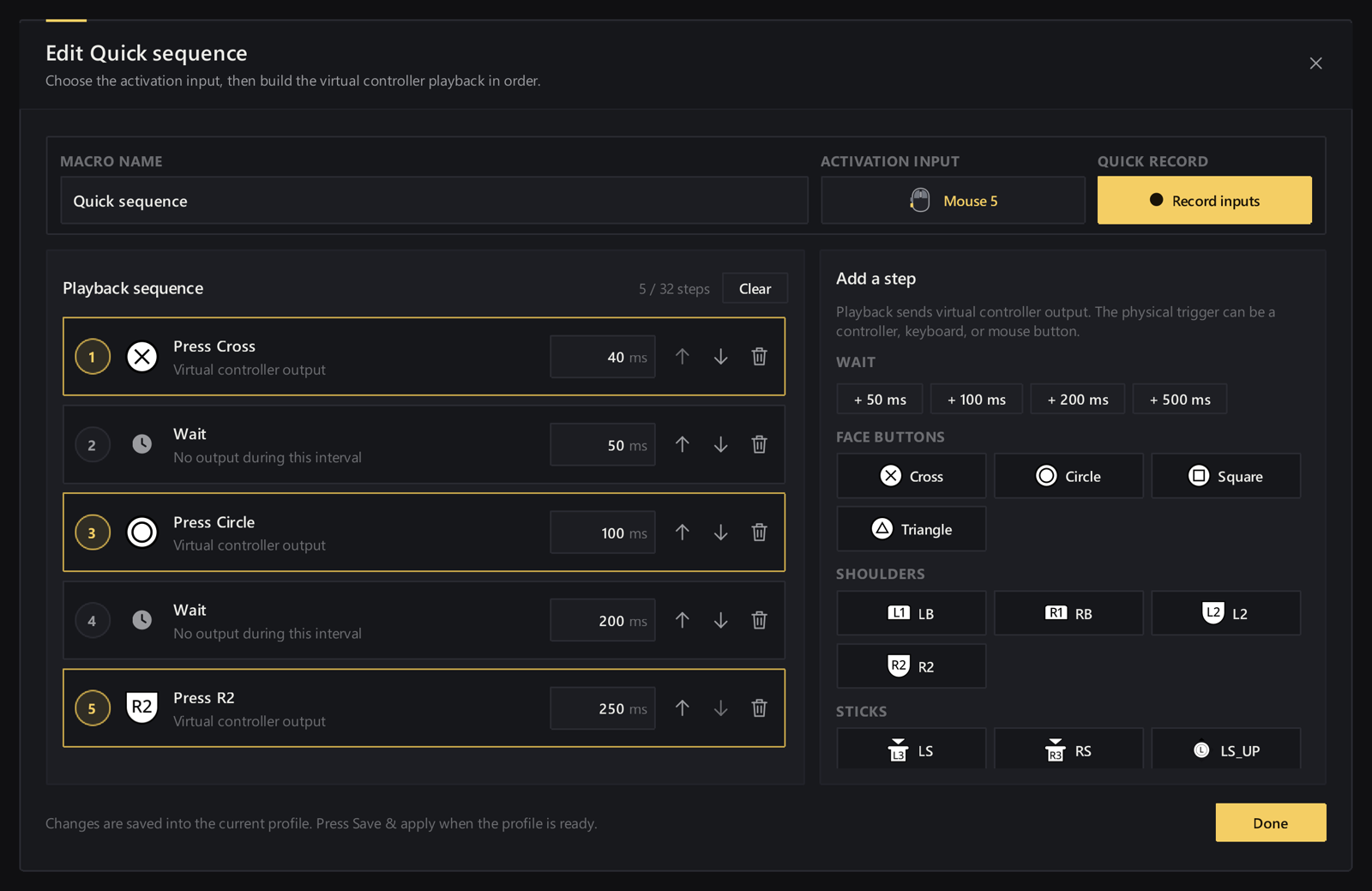
Direct answer: In Versus Remap on Windows, a macro is a short, fixed sequence of virtual-controller presses and waits. Open Macros, create a macro, name it, add the button steps in order, insert + 50 ms oppure + 200 ms pauses where the game needs breathing room, assign that macro in your profile mapping, then Save & apply. Test the sequence outside a live match and tune the timing. A profile can hold up to 12 macros with up to 32 steps each. Remap does not invent the next input from what happens on screen — you write the sequence.
This guide is the Remap macro lane. It is not the day-one apply / slot / shift walkthrough, not Game Center autodetect, and not the stream overlay path.
What a macro is (and what it is not)
A Remap macro is an ordered list of virtual presses and waits you play from a button (or a key that fires a macro). You choose the activation input, stack controller presses and wait steps, set each step’s timing, and keep the sequence with the profile. You can move a step, change its duration, or record inputs directly in the macro editor.
Use that when one press should fire a short, known cadence — not when you only need a second layout while you hold a modifier.
Livelli Shift are different: Main plus alternate sets change what buttons do while held or toggled, and empty layer buttons inherit Main. That path is already covered in the apply / slot / shift Remap guide.
Turbo is different again. On Remap, turbo means repeat while held, or toggle on tap, on the same kind of binding as a normal map. Turbo is rapid fire on one control. A macro is a multi-step sequence with pauses.
If your title or competition bans automation, skip macros. Remap’s own docs tell you to check those rules before you use sequences.
Prerequisites: a profile you can apply
You need Remap on Windows with a DualSense or Xbox pad over USB (current Remap support), a profile, and a virtual output your game expects. Saving alone is not enough — Save & apply puts the mapping on a quick slot.
If you have never applied a slot, finish that path first, then come back here.
Build the sequence in Macros
- Apri Macros and choose New oppure Create macro.
- Enter a Macro name that describes the action so you can find it later.
- Add controller-button steps in the order they should play.
- Insert a pause where the game needs time between inputs. The editor includes + 50 ms pause and + 200 ms pause.
- Adjust steps as needed: move them, change durations, or record inputs directly so the sequence matches what you meant.
Keep the first macro short. A fixed sequence that you understand beats a long chain you cannot debug mid-match.
Assign it, Save & apply, then test offline
- Assign the macro in your profile’s mapping to the button or key that should fire it.
- Select Save & apply and wait for the applied confirmation on the slot you intend to use.
- Use Input test on the virtual side (or a private lobby / menu) and fire the macro once.
- If the timing feels early or late, edit the waits and apply again.
Do this outside a live ranked match. You want to see the sequence land before you trust it under pressure.
Limits worth knowing
- Up to 12 macros per profile.
- Up to 32 sequential steps per macro.
- Use Cancella in the step editor when you want to rebuild the selected sequence from scratch.
- A macro is a fixed sequence. It does not read the game state or choose the next press for you.
That ceiling is plenty for short utility sequences. If you need a whole second layout, use a shift layer instead of stuffing the profile with oversized macros.
Fair play and competition rules
Remap can play a sequence you authored. That does not make every sequence legal in every title or tournament. Check the game’s rules and your competition’s automation policy before you bind a macro for ranked or event play. Prefer short, transparent sequences you could explain to a teammate.
FAQ
Is a Remap macro the same as a shift layer?
No. A shift layer swaps or adds alternate button actions while you hold or toggle an activation control. A macro plays an ordered sequence of virtual presses and waits from one binding.
How is turbo different from a macro?
Turbo repeats while held, or toggles on tap, on a normal-style binding. A macro is a multi-step sequence with pauses and delays you build in the macro editor.
How many macros can one profile hold?
Up to 12 macros per profile, each with up to 32 sequential steps.
Do I need to Save & apply after editing a macro?
Yes. Assign the macro in the profile mapping, then Save & apply so the mapping service runs the updated sequence. A saved editor draft alone is not confirmation it is live.
Can Remap invent inputs from what happens in the game?
No. The sequence is fixed. It does not decide what to do from game events.
Will this work with DualSense and Xbox pads?
The current Remap build targets Windows 10/11 with DualSense and Xbox One / Series over USB, plus keyboard and mouse mapping. Xbox Elite back paddles, virtual Switch Pro output, and Bluetooth rumble are not in this build.
Can I buy Remap online right now?
Online purchases are not enabled yet on the product FAQ. Compare plans on the Remap page and use Help when you need setup detail.
Soft next step
Apri Versus Remap, build one short macro in the editor, assign it, Save & apply, and test it outside a live match. For the step-by-step product guide, use Build a short macro. If the profile is not Applied yet, start with the apply / slot / shift Remap guide.