Versus VPN Windows Guide: Connect, Pick a Game Route, Save the Preference
First-session Versus VPN on Windows: sign in, pick a game, Refresh pings, Save profile, then validate in-game — relay metrics are not match ping.
Direct answer: On Windows 10/11, open Versus VPN, Sign in with Versus, open Games, find your title (search, filters, Scan installed), open its workspace, go to Connection → Choose your connection, Refresh pings, pick Automatic or a measured route after reading relay RTT / loss / jitter, Profiel opslaan, connect, then validate with your own in-game ping and packet loss — control run first, one variable at a time. Relay numbers are not in-game ping. No specific reduction is promised.
This guide is the Versus VPN first-session Windows path: sign-in → game library → route preference → save → validate in-game. It is not the Warzone ranked test protocol, not a lobby fantasy piece, and not a console share how-to.
What this guide is (and is not)
It is: a practical walkthrough of the Windows app workspace — game library, connection controls, per-game saved preferences, and honest before/after checks.
It is not: a promise that ping will drop by a fixed number, that lobbies get easier, that skill-based matchmaking turns off, or that a VPN makes you ban-safe. Versus routes traffic. It does not rewrite the game’s matchmaking rules. Official partner: SweatVPN.
If you already have stable in-game ping and no packet loss, you may not need a VPN at all. Measure first. Keep it off when it does not help.
Step 0–1: Platform and Sign in with Versus
Versus VPN runs on Windows 10 and 11. You need a subscription or an assigned VPN seat for the signed-in workspace.
- Open Versus VPN.
- Choose Sign in with Versus. The app opens a browser approval page so your password stays in the browser flow.
- Compare the code under Match this code with the browser page before you approve.
- Approve the matching request, return to VPN, and wait for the signed-in workspace.
- Check the account name before you use the workspace.
Use Open sign-in page again if you closed the browser tab, or Annuleren to stop the request. Saved builds and preferences stay local to this PC.
Setup entry from the product FAQ is Set up Vpn / Help — not a “download the installer right now” binary promise.
Step 2: Find your game in the library
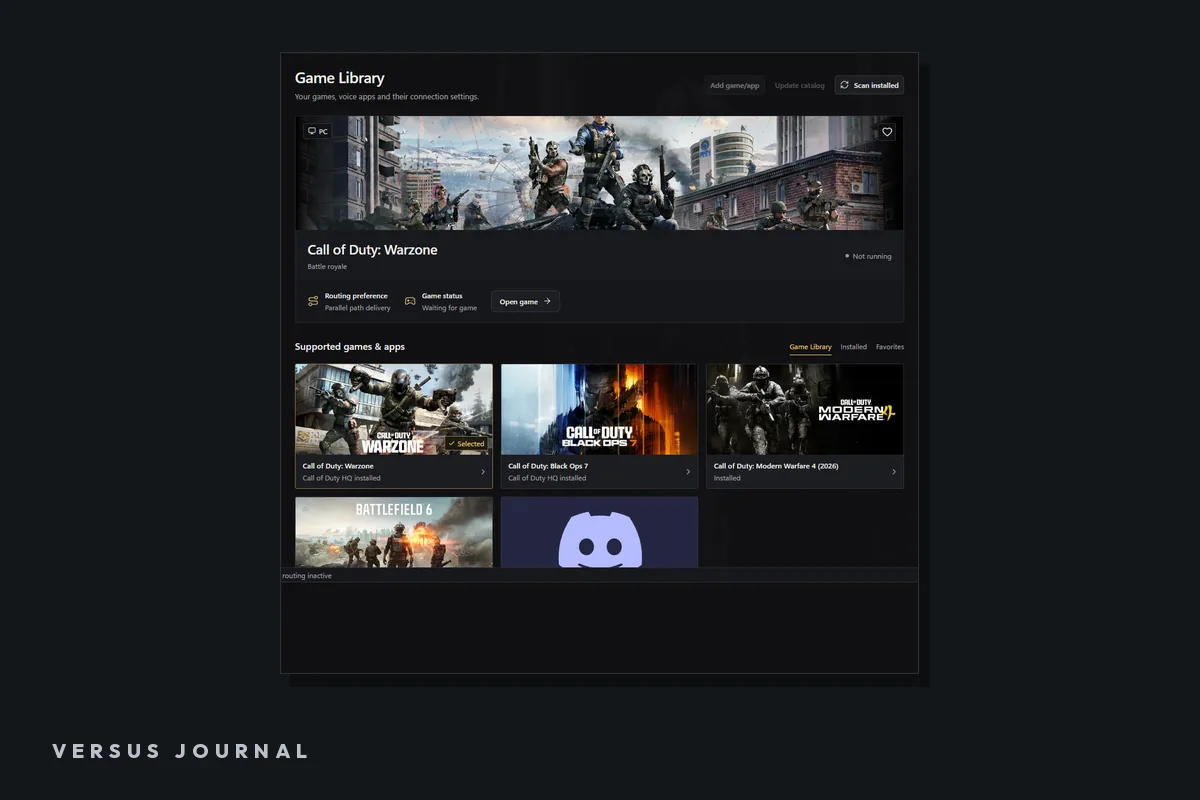
Openen Games. Search with Find a game or app… or press Ctrl K. Use the Gamebibliotheek, Installed, and Favorites filters.
- Choose Update catalog when you want a fresh catalog.
- Choose Scan installed to check applications on this PC.
- Read each card’s state — Running, Process detected, or Not detected.
- Select a card to open that game’s workspace.
- Use Add game/app if you need a custom executable entry (you can remove it later with Uit bibliotheek verwijderen).
Each title keeps its own workspace. A route you save for one game does not rewrite another.
The published library includes Warzone, Black Ops 7, Modern Warfare 4 (2026), Battlefield 6, Fortnite, Apex Legends, VALORANT, Rocket League, League of Legends, Rainbow Six Siege, and Dota 2 — and it grows. Discord can keep its own app profile.
Step 3: Choose a connection and read relay metrics
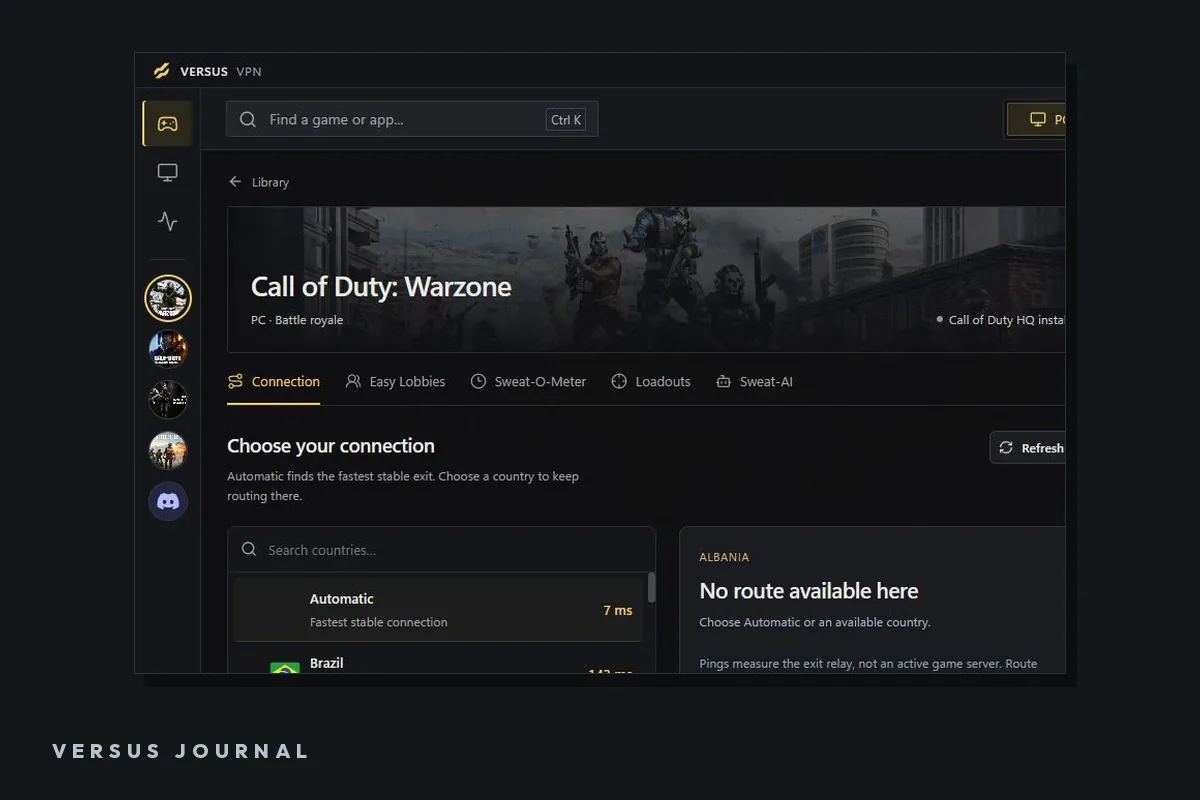
In the selected game workspace, open Verbinding and choose Choose your connection.
- Automatic uses the fastest stable measured exit available to the service.
- Or pick a country or a listed measured route.
Then:
- Choose Refresh pings so candidates are measured now.
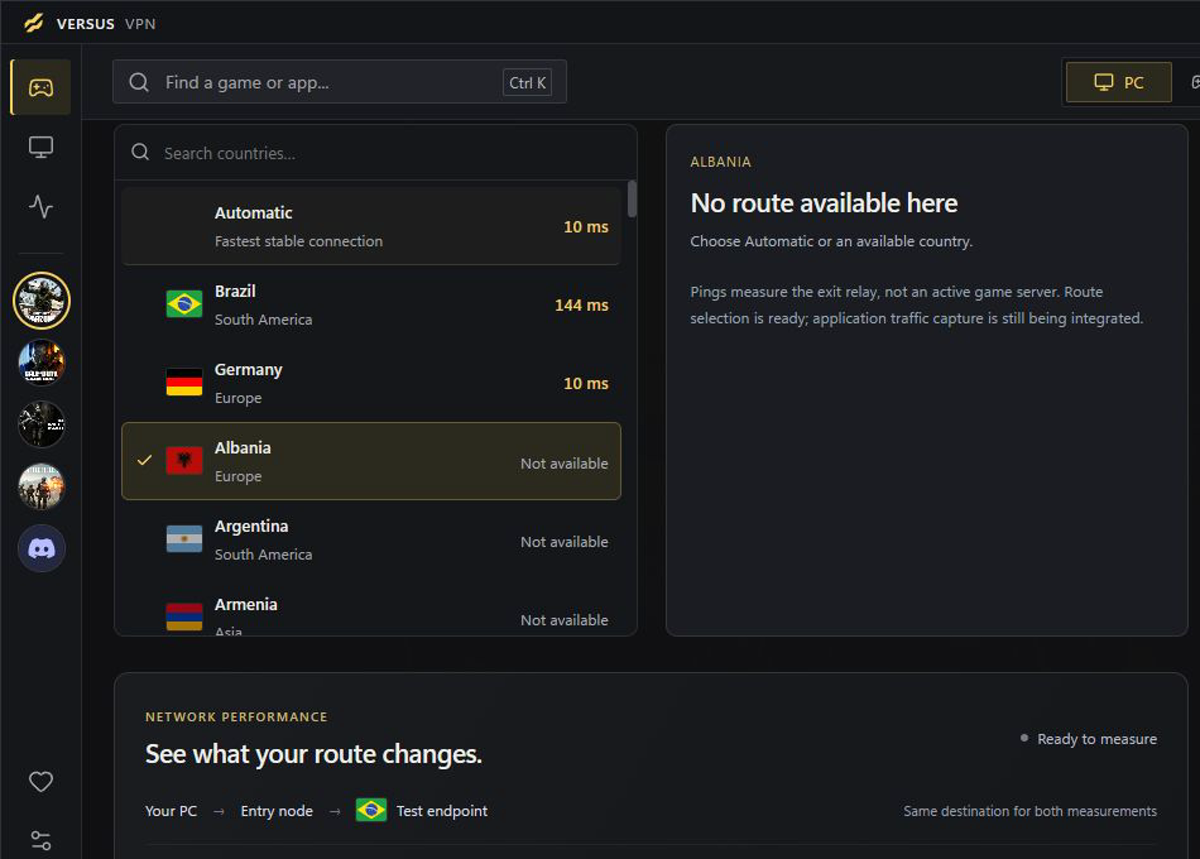
- Review Automatic and the route cards showing relay RTT, loss, and JITTER.
- Select a route, routing mode, and any applicable game policy fields.
Treat those cards as relay exit measurements, not as the ping you will see inside the game. Latency is how long the round trip to the relay takes. Jitter is how consistent those samples feel. Packet loss is how many probes miss. A RESERVEROUTE in the same country is a measured alternative for reconnecting — not a guarantee that the game server will match it.
Your closest location is not always your best path. Rank candidates by what Refresh pings shows, then confirm in-game later.
Step 4: Save the profile (per-game prefs)
Choose Profiel opslaan to store the selection locally.
That is the point of Versus VPN’s game profiles: the setup you tested is the one you reopen next session. Profiles stay separate from account-level settings. One title’s preference does not change another. Review what changed before you treat it as your new default.
A profile can also record routing-mode and policy fields where they apply. Day one: save the route preference you actually intend to test.
Step 5: Connect and validate in-game
Connect with the saved preference. Then measure the only score that decides whether to keep it: in-game ping and packet loss.
Use one variable:
- Same game, same mode, same hour window.
- Prefer Ethernet and a quiet household line for the test (if Wi-Fi was the problem, a VPN will not fix it).
- Play a short control set with VPN off. Note median feel, spikes, and loss separately.
- Play the same scenario with your saved Versus preference on.
- Decide: keep and use the saved profile, try a measured backup route, or leave VPN off for that game.
No specific reduction is promised. Results depend on your ISP, location, game server, and available routes. Compare your own results before and after — that language is on the product page for a reason.
Optional: Compare routes (diagnostic only)
When you want a side-by-side probe, open connection diagnostics after a test endpoint is available and choose Compare routes.
You get paired Direct and Via Versus round-trip values, loss, medians, a chart, and a measured difference on the same configured test endpoint. Stop the comparison when you have enough samples.
This tool is a diagnostic. It does not route your game by itself. A favorable Compare routes result does not guarantee the same outcome on a game server. Use it to inspect the path — then still validate in-game.
If status looks wrong: read the connection card and Activiteit, Opnieuw proberen on errors, Scan installed if a process is missing, or Refresh pings when values look stale.
Optional: Call of Duty tools (planning only)
On supported Call of Duty profiles you can save location and Moderate/Strict NAT preferences, use the Sweat-O-Meter as a local-time / time-of-day planning guide, and browse loadouts. Sweat-O-Meter is not a live lobby tracker. Versus does not guarantee easier lobbies or bypass skill-based matchmaking.
For a stricter Warzone ranked protocol, see Best VPN for Warzone Ranked.
FAQ
Will Versus VPN lower my ping?
No specific reduction is promised. Sometimes a different path helps when your ISP route detours or drops packets. Sometimes it adds a hop on an already clean route. Compare your own in-game results before and after.
Are the RTT / loss / jitter numbers in-game ping?
No. They describe the measured exit relay path (and Compare routes uses a configured test endpoint). Confirm with the ping and loss the game itself reports.
How do per-game preferences work?
Save routing preferences against a game so the setup you tested is the one you use next session. Profiles stay separate from account-level settings, and one game’s setup does not change another.
Is DNS a separate Versus product?
No. DNS and routing tools belong to Versus VPN. You do not need a separate Versus DNS app.
Is Versus VPN a game accelerator?
They solve the problem from different directions. An accelerator tunes traffic for specific games; Versus VPN changes the route and keeps game profiles in one place. Measure the same scenario before and after.
Kan ik Versus VPN nu gebruiken?
Versus VPN is available for Windows 10 and 11 with the full game library, saved preferences, and per-game routing. Start from Set up Vpn / Help setup on the product page.
Does Compare routes turn the tunnel on for my game?
No. Compare routes is a diagnostic measurement only. It does not route your game or another application by itself.
Soft next step
Openen Versus VPN, sign in, pick one game, Refresh pings, Profiel opslaan, and run a short control-vs-VPN check in-game. For the click path, use the Help guides: Inloggen, Gamebibliotheek, Route and profile, and Compare routes. For the broader lag order before any VPN, keep how to lower ping handy.
Measure the relay. Trust the match.