Versus Mate Windows Guide: Application Audio, Refresh Sessions & Undo
Versus Mate on Windows: enable Trust Center audio, Refresh audio sessions, Set volume or Mute, then Undo eligible changes from Action history.
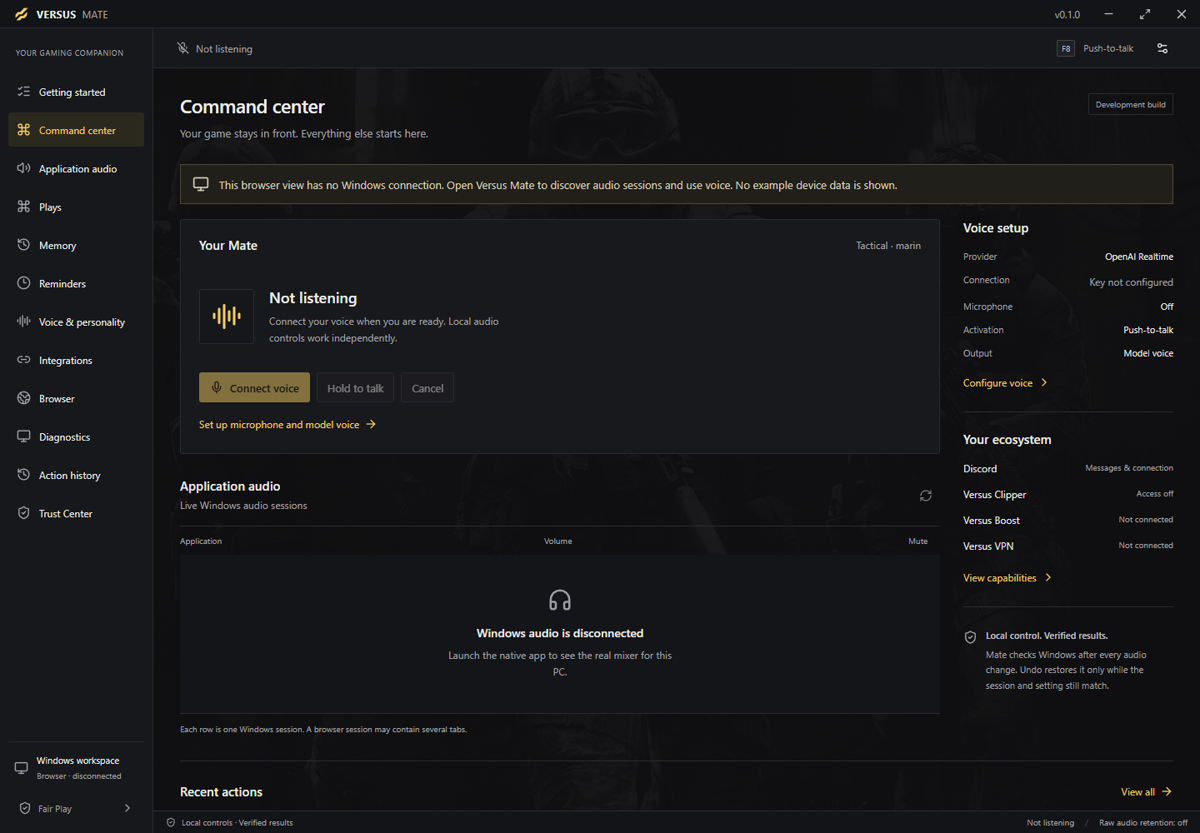
Direct answer: On Windows 10/11, open Versus Mate, enable audio control in Trust Center, open Application audio, Refresh audio sessions after sound is playing, Filter to the app you want, move the slider and choose Set (or Mute / Unmute), then open Action history and choose Undo for an eligible verified change. System output is overall Windows output. Media playback is play / pause / next / previous for players that publish a Windows media session. Recovery can expire when the target changes. Mate is free. Local app audio does not require hosted voice.
This guide is the Versus Mate Windows path for application audio — refresh, volume/mute, Undo from Action history — with a light pass on System output and media playback. It is not the full first-session voice / Plays / memory walkthrough (Versus Mate Windows Guide: Hold to Talk, Run Plays, Keep Local Memory), and it is not the Versus Audio EQ path.
What this guide is (and is not)
It is: a practical walkthrough of Mate’s Application audio workspace on Windows — Windows audio sessions, Trust Center audio access, Refresh, Filter, Set / Mute / Unmute, and Undo when the change is still eligible.
It is not: Equalizer APO curves, saved game EQ profiles, or headphone correction. Those live in Versus Audio. Mate adjusts an app’s Windows session. Audio shapes the mix.
It is not: an aimbot, game injector, or “Mate plays for you” tool. Mate does not read game memory, inject into games, or automate gameplay. It controls Windows and apps you point it at — alongside your titles.
Step 0: Platform and access
Versus Mate runs on Windows 10 and 11. It is a Gratis Windows app. It does not require a Remap or VPN subscription.
Optional hosted voice uses your provider key and is billed by that provider. Local tools do not require voice. Application audio is one of those local tools.
Product entry is Set up Mate / Help — not a “download the installer right now” binary promise. Catalog status for Mate is current; there is no public installer URL to promise in this post.
Step 1: Turn on audio control in Trust Center
Trust is not one master switch. Microphone, hosted voice, memory, and app integrations have separate access controls. Browser, audio, memory, reminders, diagnostics, and overlay are separate choices too.
- Openen Trust Center.
- Enable audio access so Mate can control Windows audio sessions.
- Leave mic, hosted voice, memory, and other integrations off unless you need them today.
If an integration is paused, use its Review access control before you force another action. You decide what to turn on.
Step 2: Open Application audio
Openen Application audio to see the Windows audio sessions that are active on this PC.
Each row shows an application, device, Activiteit, volume, and mute state.
If the list looks empty or stale, that is normal before sound is running — go to Refresh next. Do not invent a session that Windows has not published yet.
Step 3: Refresh audio sessions after sound starts
Start sound in the game, browser, Discord, music app, or launcher you care about.
Then choose Refresh audio sessions.
That pull is the difference between guessing at a ghost mixer and adjusting the session Windows is actually playing. Refresh again if an app closed, restarted, or stopped listing.
Step 4: Filter, Set volume, Mute / Unmute
When several sessions are listed, use Filter applications… to narrow the list.
- Select the session you mean — game vs Discord vs browser vs launcher.
- Move that application’s slider.
- Choose Set to apply the new volume.
- Or choose Mute / Unmute when you need silence or restore for that session only.
Check the result with your ears. One session at a time. That is how you keep Discord from burying footsteps without nuking the whole Windows output.
Product walkthrough pattern (from Mate’s own showcase): find the Steam session you want, set it lower when you need room in the mix, restore it when you want the original level back.
Step 5: Action history → Undo (when eligible)
Openen Action history.
Results can read Geverifieerd, failed, In afwachting, or uncertain. For an eligible verified change, choose Undo.
Undo is not a promise that every tweak reverses forever. A recovery action can expire when the target changes — for example when the session, app, or state you changed is no longer the same target. If a result looks uncertain, use its status check before you stack another change.
Clear completed history only when you no longer need the visible completed log.
Optional: System output and media playback
System output controls the overall Windows output — the big knob, not a single app session.
Media playback covers players that publish a Windows media session, with play, pause, Volgende, and Vorige. If a player does not publish a media session, do not expect Mate to invent transport controls for it.
Use these when you need the whole output or a media transport — keep per-app volume/mute on Application audio when Discord and the game are fighting.
Plays vs one-off mixer tweaks (light)
Mate also lets you put audio actions in order inside a Play, preview what will change, run it, and review the result. Restoration still depends on the action and whether the original app state still matches.
This post stays on the Application audio click path. For hold-to-talk, Plays, and local memory in one first-session spine, use the Mate voice / Plays / memory guide.
Soft links you may need
- EQ path: Versus Audio for equalizer and saved game profiles. Mate = app session controls. Audio = EQ path.
- Clipper from Mate: only if Clipper is already running and the relevant Trust Center access is enabled. Do not treat Mate as a capture app by itself.
- Help anchors: Adjust app audio and media playback · Choose access and recover safely · Sign in and complete Mate setup
FAQ
Does application audio need hosted voice?
No. Local app controls can be used without connecting hosted voice. Voice needs Microphone + Hosted model voice permissions and a saved provider key — that is a separate path.
Why is my session missing?
Start sound in the app, then Refresh audio sessions. Filter if the list is long. Sessions come from what Windows is publishing now.
Does Undo always work?
No. Undo is for an eligible verified change. Recovery can expire when the target changes. Check Action history status before you assume a reverse.
Is Mate free? Do I need Remap or VPN?
Yes, Mate is free Windows software and does not require a Remap or VPN subscription. Optional hosted voice is billed by your provider.
Does Mate inject into games or act as an aimbot?
No. It does not read game memory, inject into games, or automate gameplay. It is not an aim- or input-changing competitive cheat tool.
Does Mate save raw mic audio or auto-save conversations?
No. Mate does not save raw microphone recordings. Memory stores only what you explicitly save — and that is a different Trust Center area than audio control.
Can I download Mate right now?
Follow Set up Mate / the Help setup guides on the product page. This post does not promise a public installer binary URL.
Soft next step
Openen Versus Mate, enable audio in Trust Center, Refresh audio sessions, Set or Mute one non-critical session, then practice Undo from Action history while the change is still eligible. For the click path, stay on docs Mate audio and Trust Center. For EQ after the mixer is sane, keep Versus Audio handy.
Stay in the game. Call on Mate for the session volume — and Undo when the target still matches.