Versus Mate Windows Guide: Hold to Talk, Run Plays, Keep Local Memory
First-session Versus Mate on Windows: hold-to-talk voice, Plays with preview and undo, per-app audio, and local notes—with separate mic, voice, memory, and integration permissions.
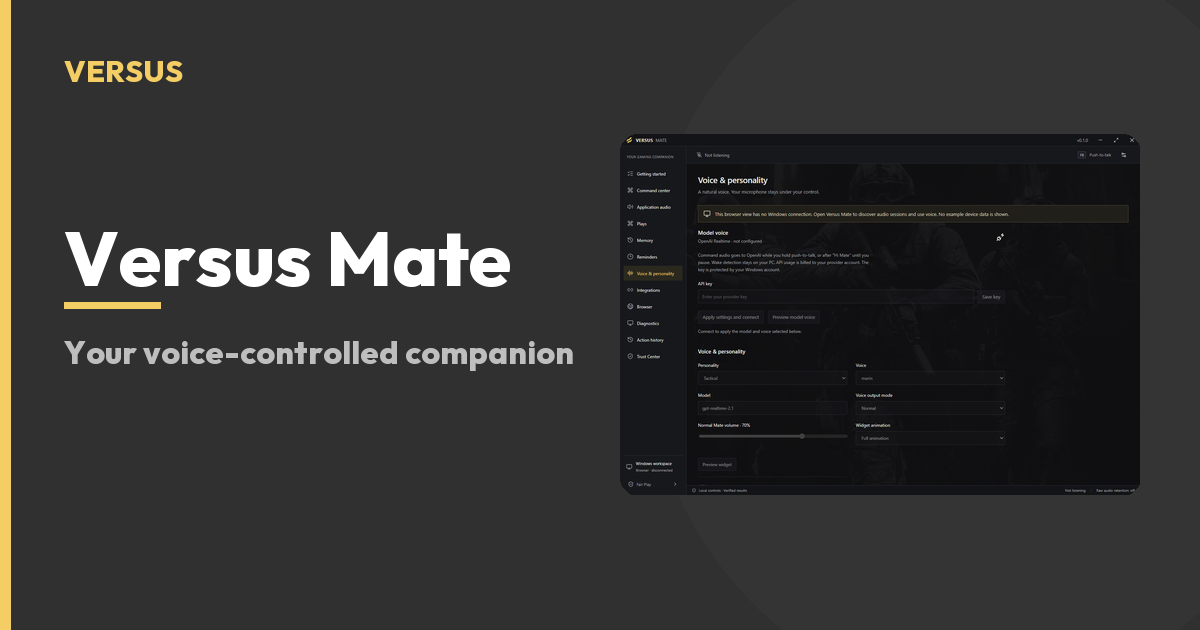
Direct answer: Versus Mate is a free Windows 10/11 gaming companion for the things *around* the game. Hold a configured shortcut to talk, release to send. Build ordered Plays, preview what will change, run them, and use Undo when the original app state still matches. Adjust per-app Windows volume or mute. Save game notes, confirmed fixes, and reminders locally—with retention and deletion under your control. Microphone, hosted voice, memory, and app integrations use separate permissions. Optional hosted voice uses your own provider key and is billed by that provider; local tools do not require voice.
You should not leave a match to hunt volume mixers, sticky notes, or a stack of one-off macros you do not trust.
This is the first-session path: arm voice when you mean it → run a Play or tweak app audio → keep what worked on your PC. It is not a Clipper capture guide and not a Remap controller post. Mate does not play the game for you, and it is not an aim- or input-changing competitive cheat tool.
What Mate is for in a first session
Mate keeps the around-the-game loop close:
- Voice when you ask — hold your shortcut, speak, release to send.
- Plays — ordered audio and actions you preview, run, and can undo when state still matches.
- Application audio — find a Windows app session, set volume or mute, review, Undo when available.
- Local memory — notes, confirmed fixes, reminders you choose to keep.
- Permissions you pick — mic, hosted voice, memory, integrations are separate switches.
Windows 10/11. Free app. No Remap or VPN subscription required.
Need first-run help? Sign in for first-run setup, then follow the Mate setup guide.
Hold to talk — then release to send
Push-to-talk is the default privacy model.
Hold your configured shortcut to talk. Release to send. The product UI shows F8 as a hold-to-talk example—treat it as an example of the pattern, not a locked forever key. If that shortcut already fights another Versus app (or anything else on your PC), pick a different Mate shortcut and escalate a Remap conflict to Support rather than guessing a remapping recipe here.
Mate arms on the hotkey, captures the command, runs it, and closes. On the voice page: nothing is sent anywhere until you configure a provider and speak a command. You can see what it heard before it acts.
Optional “Hi Mate” wake (not always-listening by default)
You can separately enable the optional “Hi Mate” wake phrase. Wake detection runs locally. After activation and permission, voice commands go to your configured provider.
The microphone is not always listening by default:
- Push-to-talk captures while you hold the configured shortcut.
- If you enable Hi Mate, local wake listens for that phrase only.
- Microphone permission and hosted voice permission are separate.
- Raw audio is not saved by Mate.
Always-open mics are a privacy problem and a resource cost. Mate’s design answers that with arm → capture → run → close.
Free app, optional hosted voice on your key
Mate is free. Optional hosted voice uses your provider key; usage is billed by that provider, outside Versus. Local tools—app audio, Plays you prepare, notes and reminders—do not require voice. Use the pieces you need.
Plays: preview, run, Undo when state still matches
A Play is a named sequence you build once and reuse—audio actions in order, ready before the queue.
How a first Play should feel:
- Put the steps in order.
- Preview what will change.
- Run the Play.
- Review the result.
- Use Undo when the original app state still matches.
Restoration depends on the action and whether that original state still matches. That is the difference between a macro you trust and one you are afraid of mid-match.
Worth speaking (from the voice page’s command list): launch or focus a game, start/stop capture or keep a recent replay moment, set or mute one application’s volume without leaving the game, save a timestamped note, or run a Play as a single undoable sequence.
Application audio without leaving the match
Open application audio when Discord, music, or a launcher is winning the mix.
- Find the app’s Windows audio session.
- Adjust volume or mute that session.
- Review the result.
- Use Undo when it is available.
Example from the product walkthrough: find the Steam session, set it to fifty percent when you need room in the mix, restore to one hundred percent when you are ready. Less hunting through Windows. More time in the game.
For deeper EQ and saved game profiles, explore Versus Audio as a separate app. Mate handles app controls; Audio owns the EQ path.
Local memory: keep the fix, lose the guesswork
After the match, keep what actually worked.
Memory on Mate is for:
- Game notes you write
- Confirmed fixes you tested
- Reminders in a local queue, with due-time feedback from Mate
Memory is stored locally and needs your permission. You control retention and deletion. Search notes and fixes later. Mate does not automatically save your conversations. Settings stay on your PC.
Before the match: get voice and app access ready. During the session: keep audio and Plays in reach. After the game: keep the things worth remembering.
Permissions are separate — you choose each one
Trust is not one master switch.
Microphone, hosted voice, memory, and app integrations have separate access controls. Turn on only what you need. Connecting another app is always a separate choice with its own permission.
Optional: Clipper and browser
- Versus Clipper: Mate can request a save from Clipper’s existing replay buffer. Clipper must be running, with access enabled. No Clipper, no buffer request.
- Browser & apps: Connect supported tools separately. Choose what Mate may read or control.
You do not need every Versus app. Use Mate for the tools you need. Features tied to another app need that app running and the relevant permission on.
What Mate does not do
Straight from the voice page:
- It does not play the game for you.
- It does not act without a command.
- Anything that changes aiming or inputs in competitive multiplayer belongs to a different category of tool—and Mate is not that.
Mate controls Windows and the apps you point it at rather than injecting into games, so it works alongside whatever you play.
First-session checklist
- Open Mate on Windows 10/11 and sign in for first-run setup — follow Set up Mate.
- Choose microphone and your push-to-talk shortcut (F8 is the product UI example; configure what fits your setup).
- Decide on hosted voice: skip for local tools, or add your provider key if you want spoken commands.
- Review Trust Center: mic, hosted voice, memory, integrations—enable only what you need.
- Build one short Play (ordered audio/actions) → preview → run → confirm Undo behavior.
- Practice application audio on a non-critical session (volume/mute → review → Undo if available).
- Optionally enable Hi Mate wake; leave it off if you want PTT-only.
- If you use Clipper, start Clipper, enable Mate access, then try a buffer save request only when both are ready.
- Save one game note or reminder so you know where memory lives—and that conversations are not auto-saved.
FAQ
Is Versus Mate free?
Yes. Mate is a free Windows app and does not require a Remap or VPN subscription. Optional hosted voice uses your own provider key; voice usage is billed to your provider account. Local tools do not require voice.
Is the microphone always listening?
No by default. Push-to-talk captures while you hold the configured shortcut. If you separately enable “Hi Mate”, local wake detection listens for that phrase. Microphone and hosted voice permissions are separate. Raw audio is not saved by Mate.
What are Plays, and does Undo always work?
A Play is an ordered list of steps you preview, run, and review. Undo is available when the original app state still matches. Restoration depends on the action and whether that state still matches.
Do I need every Versus app?
No. Use Mate for the tools you need. Features connected to another app, such as Clipper replay saving, need that app running and the relevant permission enabled.
Does Mate work with any game?
Mate controls Windows and the apps you point it at rather than injecting into games, so it works alongside whatever you play. It does not play the game for you and does not change aiming or competitive inputs.
Can I download Mate now?
Mate is free Windows software. Follow the setup guide to configure voice, permissions, and your first session: Set up Mate.
Soft CTA
Stay in the game. Call on Mate for the volume tweak, the Play you trust, and the note you will actually find later.
Set up Versus Mate on Windows, hold to talk when you mean it, run a Play with preview and undo, and keep memory local under your permissions.
- Product: Versus Mate
- First-session help: Set up Mate
- Voice deep-dive: Voice control for games on Windows