Versus Aim Windows Guide: Mouse & Controller Settings, Separate Rankings & Personal Bests
Versus Aim on Windows: lock mouse or controller settings, keep them consistent, use separate mouse and controller boards, and sign in to submit personal bests from a single ranked drill.
Direct answer: On Windows, open Versus Aim, Sign in with Versus, then lock the input you actually play — Mouse oppure Controller — in Loadout / Impostazioni before you enter the range. Set hip-fire and ADS (mouse) or look speed, ADS, curve, and deadzones (controller), plus FOV and crosshair. Keep that setup consistent so the next session is comparable. Mouse and controller scores stay on separate boards. Mouse has no assist; controller runs allow light target slowdown. Sign in, finish a single 20-second ranked drill, and your personal best can join that scenario’s ranking for your input. Routines and Freightlock bot matches do not enter single-drill placements. Free app, no paid Remap plan. Start from Set up Aim in Help.
This guide covers Versus Aim settings, separate rankings, and personal bests on Windows. It is not the drills-and-routines first-session guide (Versus Aim Windows Guide: Pick Input, Run a Drill or Routine, Keep Rankings Separate). Read that one for named drills, Quick 30, and the first-session run order. For a timed five-minute warm-up before ranked, use the free Windows aim trainer warm-up. This post stays on input settings, separate boards, and personal bests that do not lie to you.
What this guide is for
Aim’s settings job:
- Pick one input — mouse or controller — and set it like ranked.
- Keep it stable — same sens, FOV, assist choices, so scores compare.
- Read the right board — mouse and controller never share a ranking.
- Submit what counts — sign in, finish a supported single ranked drill, then check your PB.
A few things to know up front:
- Setup starts from Set up Aim in Help, not a direct download button.
- Mouse has no assist. Controller runs allow light target slowdown (optional light aim assist).
- Demo or walkthrough footage is not your score. Practice on your own PC.
- Aim is a Windows app, not a console app. You can connect a controller on your PC.
- Drills and routines live in the drills guide linked above.
Windows 10/11. Free app. One Versus account when you want boards and submitted PBs.
Need the long form? Use the Set up Aim / Aim docs guide.
Step 0: Free access — Set up Aim
You do not need a paid Remap plan.
- Open Versus Aim on Windows 10/11.
- Choose Sign in with Versus. Approve the PC in the browser, then return.
- Start from Set up Aim in Help. There is no direct download link in this guide.
Step 1: Sign in (browser Match this code)
Open Versus Aim and choose Sign in with Versus. The sign-in page opens in your browser.
- Compare the code under Match this code with the browser page before approving.
- Approve the matching request, then return to Aim and wait for the signed-in workspace.
- Use Open sign-in page again if you closed the page, or Annulla to stop the request.
- Check the account name in the status bar before you train.
Your password stays in the browser flow — it is never entered in the Aim desktop app. If the connection interrupts, Aim keeps checking and reports that it is retrying.
Step 2: Mouse settings (lock them before the range)
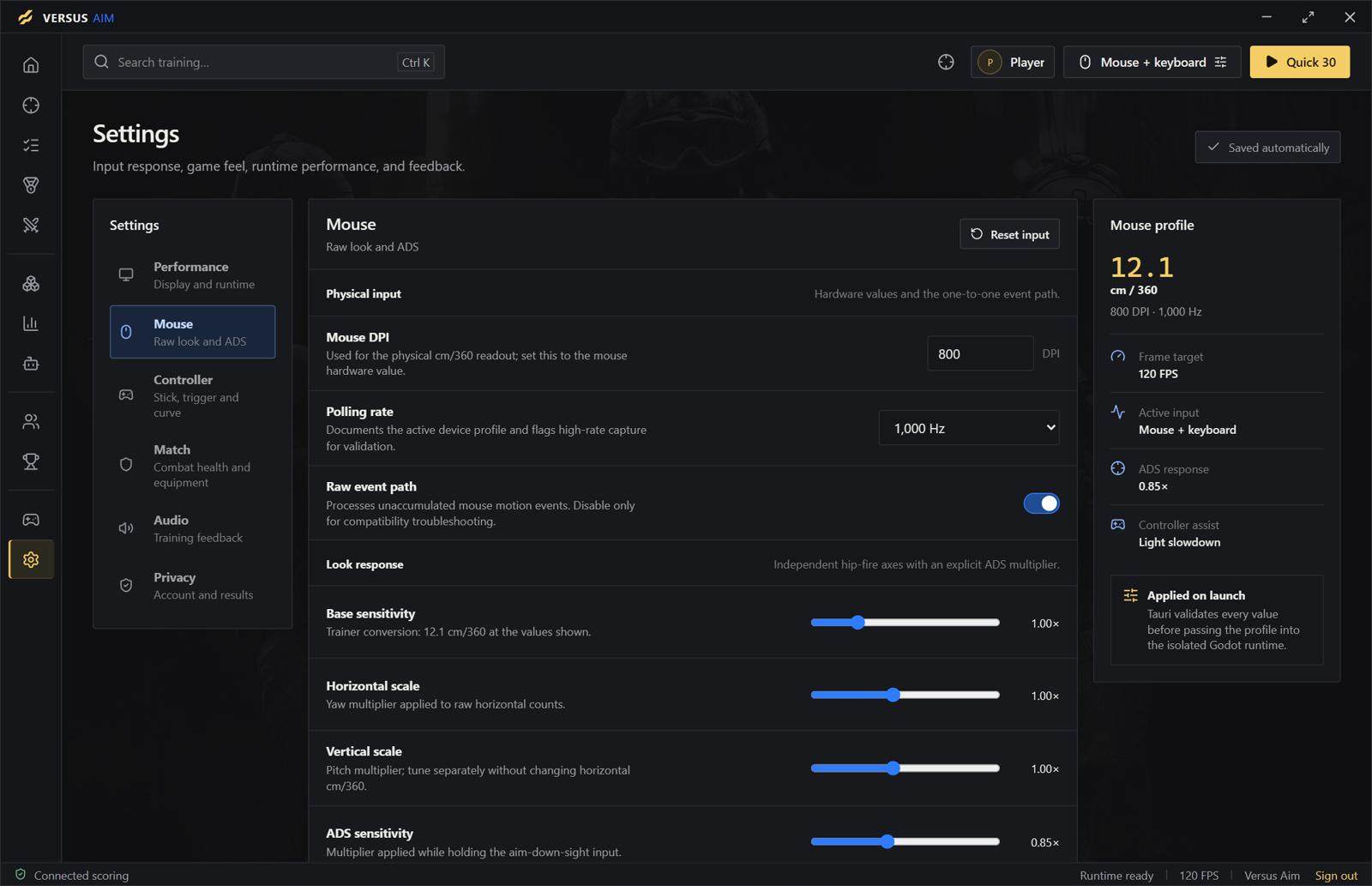
Apri Loadout for the profile you want next, or Impostazioni for the complete list. Settings categories include Performance, Mouse, Controller, Match, Audio, and Privacy.
For mouse input (Help + product):
- Enter your mouse’s hardware DPI for the distance readout.
- Choose raw input.
- Set base / hip-fire sensitivity and ADS sensitivity separately.
- Adjust horizontal and vertical scales if you use them.
- Facoltativo smoothing — only if that matches how you play.
- Polling rate is saved as a profile value. It does not measure or change your mouse.
- Adjust field of view and crosshair in the app before you enter the range.
Product settings shots are example settings, not performance results. Copy the feel you play ranked with — not a screenshot flex.
Use Reset input when you want that settings group restored to defaults. Launch a session to apply the profile.
Step 3: Controller settings (light assist only)
Same Loadout / Settings path. For controller input:
- Set look speed, ADS, curve, and deadzones.
- Choose shoulder layout.
- Facoltativo light aim assist.
- Vibration on or off to match how you play.
- Product also surfaces horizontal, vertical, and ADS stick settings.
If Windows does not see the pad, reconnect it and use Check again. Aim can still offer launch after a shell check misses a controller, but Windows must expose the device for controller input.
Controller on PC is still Windows Aim — not a standalone console app.
Step 4: Keep the setup consistent
Product rule: keep the setup consistent so your next session gives you something useful to compare.
If warm-up sens, FOV, or assist choices differ from the sessions you care about, you are practicing a different sport — and board comparisons get noisier. Lock the input. Lock the profile. Then train.
Settings workspace examples on the product page are UI examples, not a score to beat.
Step 5: Separate rankings — the honesty block
This is where players lie to themselves when they bounce between mouse and pad.
Live rules:
- Each drill has separate mouse and controller rankings.
- Mouse input has no assist (product: raw input / no assist).
- Controller runs allow light target slowdown.
- The two input partitions never share a ranking.
- A higher personal best replaces your previous score for that scenario and input.
Leaderboards let you choose a drill, input partition, and scoring version. The current board is a preseason board, and older boards stay available as read-only archives. To get on the board, sign in, finish a supported single ranked drill, and check the matching input partition.
Benchmarks (Contact Flick, Strafe Trace, Entry Switch, Reactive Cutback) also keep MNK and Controller progress separate. Optional later — not required to get settings right once.
Step 6: What lands on the board (and what does not)
To put a personal best on the board:
- Stay Accesso effettuato.
- Complete a single 20-second ranked drill on the input you care about.
- Wait for the completion notice, or open Classifiche.
- Choose the drill and the correct input partition.
- If delivery stalls, use Retry score delivery and leave Aim open for automatic retry — your saved run stays on this PC. If the board cannot load, select Retry leaderboard.
What does not enter single-drill placements:
- Routine scores — they stay in your run history.
- Freightlock bot matches — UNRANKED; team results stay separate from single-drill rankings.
Want named drills, Quick 30, Mouse 30, Controller 30, Recoil 30, Competitive 40, or a custom routine under 90 seconds? Use the drills guide linked above. This one stays on settings and boards.
Step 7: Review the run without mid-drill panic
After a session, open Analytics for runs saved for your account on this PC. Filter All runs, Single drills, Combat, MNK, or Controller. Open a session for score, accuracy, input, rules, and per-drill measurements when available. Comparable runs shows how many runs share the selected settings, sequence, duration, input, and scoring rules.
Coach can suggest a next drill from accepted completed runs — useful after a few honest scores, not as a substitute for locking input correctly once. Detailed replay events stay on this PC.
Keep eyes on the target during the run. Compare after. That is how personal bests stay useful.
Light troubleshooting (Help-citeable)
- Score not on the board — signed in? Was it a single ranked drill (not only a routine or Freightlock match)? Try Retry score delivery.
- Wrong board — check mouse vs controller partition. Mixing inputs is how you lie to yourself.
- Settings applied, but not saved — Retry saving settings; the current session keeps using its current values.
- Training game unavailable — read the session error; Aim checks that the installed training game matches the desktop app. Include the displayed error for support; do not delete run history to “fix” it.
- Console Aim? — Aim is Windows-only. Connect a controller on PC; it is not a standalone console app.
- Setup / account — return to Set up Aim in Help.
Guide correlate
- Drills and routines: Pick Input, Run a Drill or Routine, Keep Rankings Separate
- Pre-ranked activation: Free Windows Aim Trainer Warm-Up: 5 Minutes Before Ranked
- Product + Help: Versus Aim · Guide · Setup · Impostazioni · Classifiche · Results · Troubleshooting
FAQ
Versus Aim è gratis?
Yes. Versus Aim is a free app and does not require a paid Remap plan. Use your Versus account to sign in and submit personal bests.
Aim funziona su console?
No. Aim runs on a Windows PC. You can connect a controller and train there; it is not a standalone console app.
Come funzionano le classifiche?
Each drill has separate mouse and controller rankings. Mouse input has no assist; controller runs allow light target slowdown. A higher personal best replaces your previous score. Sign in, finish a single ranked drill, then open the matching board.
Do routines count for the drill leaderboard?
No. Routine scores stay in your run history. They are not placed on a single-drill leaderboard. For a submitted PB on a drill board, finish a single 20s ranked drill while signed in.
Posso scaricare Aim ora?
Use the Set up Aim guide for account setup, settings, your first drill, and troubleshooting. The product page and Aim docs have the current path.
Is the site demo my score to beat?
No. Recorded product walkthrough footage shows the trainer running with no added score layer. Your progress belongs to your own sessions on your setup. Settings workspace shots are example settings, not performance results.
Should I change sens between warm-up and ranked?
Keep the setup consistent. If warm-up sens, FOV, or assist choices differ from the sessions you care about, comparisons get noisier.
Next step
Apri Versus Aim, sign in, lock mouse or controller settings to match how you play, then submit a single ranked drill to the correct board. Click paths: Set up Aim · Impostazioni · Classifiche. Drills and routines: Pick Input, Run a Drill or Routine. Five-minute warm-up: free Windows aim trainer warm-up.
Lock the input. Keep the board honest. Compare what you can reproduce.