Versus Mate Windows Guide: Trust Center Permissions, Browser Access & Clipper From Mate
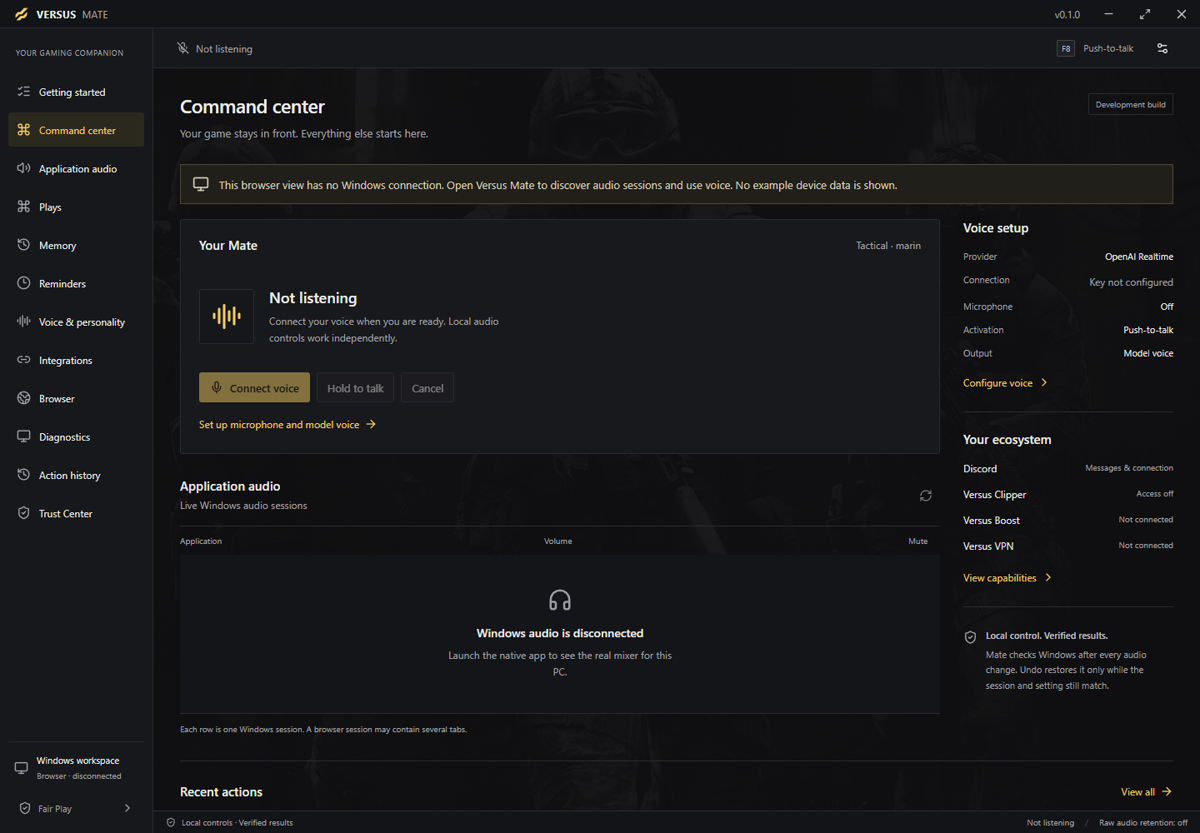
Versus Mate on Windows: turn Trust Center permissions on separately, connect Chrome with the Connected-card tools, then Test connection and Save replay or Mark a moment from Mate when Clipper is open.
Direct answer: On Windows 10/11, open Versus Mate and use Trust Center to turn Microphone, hosted voice, memory, and app integrations on separately — browser, audio, Clipper slices, reminders, diagnostics, and overlay are separate choices too. Connect Chrome ou Clipper only after the matching access is on. For browser: finish Set up Chrome, allow App reading & browser tabs, and use only what the Connecté card lists. For Clipper, Clipper must already be open. Run Test connection, then Prepare / Confirm capture, Save a replay with a Replay length, or Mark a moment. Saving needs buffered footage. Mate is free. Local tools do not require hosted voice. Start from Set up Mate in Help.
This guide covers Mate’s Trust Center permissions, browser access, and Clipper from Mate on Windows. For the first-session hold-to-talk / Plays / local memory walkthrough, read Versus Mate Windows Guide: Hold to Talk, Run Plays, Keep Local Memory. For Application audio Refresh / Set / Undo, read Versus Mate Windows Guide: Application Audio, Refresh Sessions & Undo. This one stays on Trust Center, the Chrome Connected card, and asking Clipper for a save or marker from Mate.
What this guide is (and is not)
It is: a practical walkthrough of Mate’s Trust Center, browser companion setup, and Clipper from Mate on Windows — separate permissions, Review access when paused, Action history statuses, Connected-card browser tools, Test connection, Prepare/Confirm capture, Save replay, Mark a moment.
It is not: a full voice / Plays / memory first session. The voice guide linked above covers hold-to-talk, Plays with preview and Undo, and local notes.
It is not: the Application audio mixer deep dive. The app audio guide linked above covers Refresh sessions, Set / Mute, and Undo from Action history.
It is not: the Clipper capture / edit / share Windows Guide. Mate requests a save from Clipper’s existing replay buffer. Clipper itself owns capture, buffer, library, and export. See Versus Clipper when you need the capture product.
It is not: an aimbot, game injector, or “Mate plays for you” tool. Mate does not read game memory, inject into games, or automate gameplay. It controls Windows and the apps you point it at — alongside your titles.
Step 0: Free access — Set up Mate
Versus Mate runs on Windows 10 and 11. It is a Gratuit Windows app. It does not require a Remap or VPN subscription.
Optional hosted voice uses your provider key and is billed by that provider. Local tools do not require voice. Trust Center choices, browser connect, and Clipper requests still need the matching access on — voice is a separate path.
Start from Set up Mate in Help. There is no direct download link in this guide.
Open Mate and choose Sign in with Versus. Continue in your browser, compare the displayed code with Mate, and approve the matching request. First run walks Set up voice, Connect your apps, and Try your Mate. Use Skip for now if you want to leave setup and reopen it later from Premiers pas.
Step 1: Trust Center — separate permissions
Trust is not one master switch.
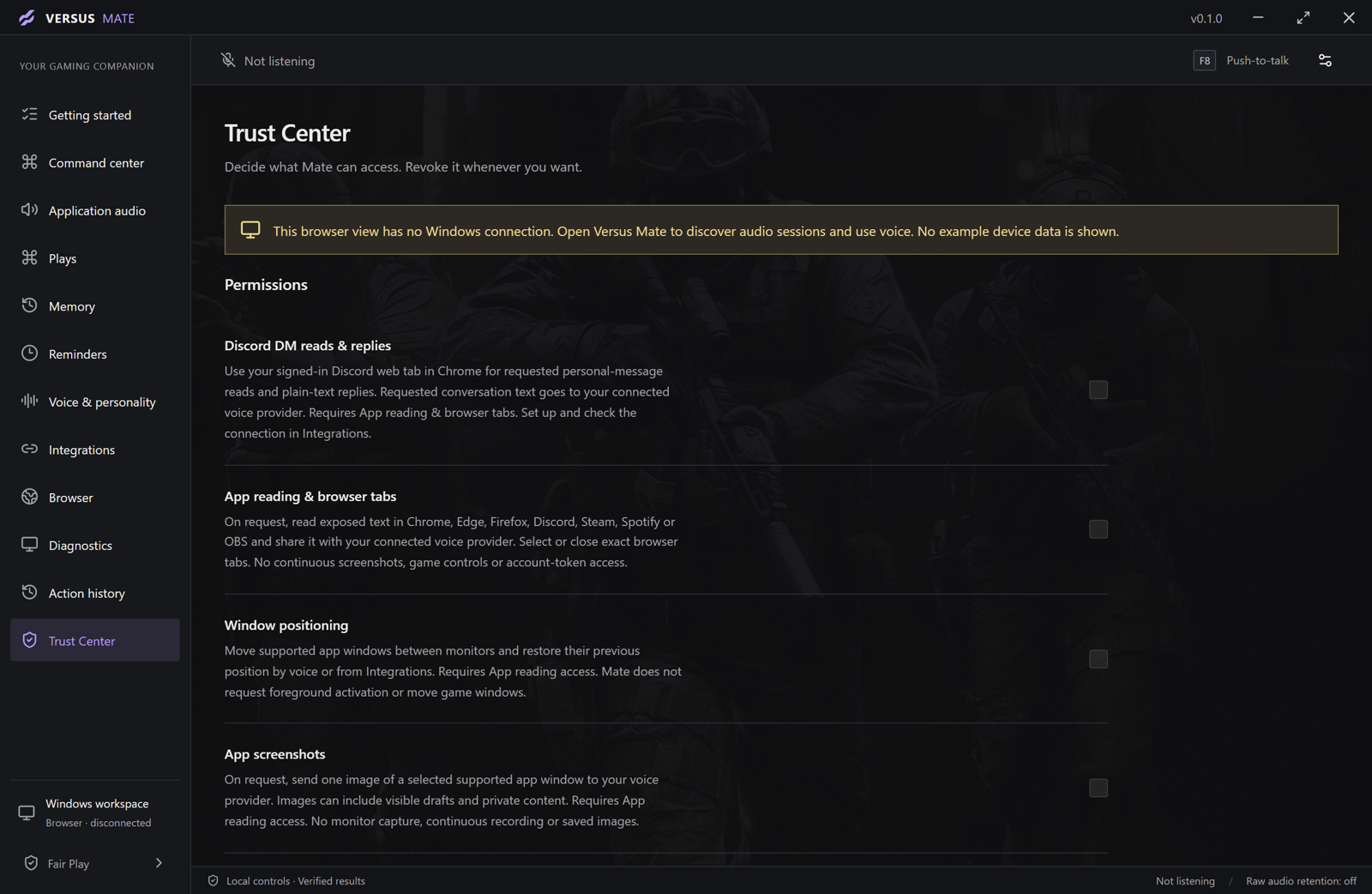
Microphone, hosted voice, memory, and app integrations have separate access controls. Browser, audio, memory, reminders, diagnostics, and overlay are separate choices too. Clipper access is split further:
- Clipper connection status
- Clipper replay saving
- Clipper capture control
- Clipper moment markers
- Clipper voice access
Turn on only what you need today.
- Ouvrir Trust Center.
- Enable the area you are about to use — browser tabs, Clipper replay saving, capture control, markers, audio, memory, and so on.
- Leave mic, hosted voice, and other integrations off unless you need them for this session.
When an integration is paused, choose its Review access (or Review … access) control before you force another action. You decide what to turn on. Nothing runs without your OK.
Step 2: Action history — read the status before you stack
Ouvrir Action history when a save, marker, capture, or other action needs a check.
Results can read Vérifié, failed, En attente, or uncertain.
If a save, marker, or capture result is uncertain, choose its status check before you try another action. Do not spam Confirm until the last result settles.
Clear completed history only when you no longer need the visible completed log.
Step 3: Browser access — Connected card only
Mate uses the Versus Mate Browser companion in Chrome while your game stays in front. Open Integrations ou Browser, then choose Set up Chrome. Your Chrome account remains in Chrome. Mate does not ask for a browser password.
- Choose Open Chrome extensions after the companion files are prepared.
- For a first install, turn on Developer mode, choose Load unpacked, and select the folder shown by Open companion folder.
- In the intended Chrome profile, enable Versus Mate Browser and press its Reload control.
- In Mate’s Trust Center, allow App reading & browser tabs.
When the card says Connecté, Mate can:
- find tabs
- read YouTube results
- open a page
- or close one exact tab and then check the result
That is the full list the Connected card shows. Connecting another app is always a separate choice with its own permission.
Step 4: Clipper from Mate — Clipper must already be open
Ouvrir Integrations and find Versus Clipper.
Clipper must already be open. Mate requests a save from Clipper’s existing replay buffer. No Clipper running, no buffer request. Access must be enabled in Trust Center for the slices you use.
Choose Test connection. Read what comes back: Service reached, the Clipper version, Compte state, capture state, saving state, replay buffer, and Audio choices. Fix a failed reach before you ask for a save.
Capture control (Prepare, then Confirm)
- Choose Prepare start ou Prepare stop.
- Check the displayed source and system audio / microphone choices.
- Choose Confirm start ou Confirm stop.
- Use Annuler to abandon a pending request.
Prepare is not Confirm. Read the preview, then commit.
Save a replay
- Choose Save a replay.
- Select a Replay length.
- Choose Save replay.
Saving needs buffered footage. If the buffer is empty or too short, you will not get the moment you meant.
Clipper’s own Help lists clip lengths of 15, 30, 60, and 120 seconds, and the clip length is limited by the buffer. A shorter buffer produces a shorter saved clip. Set Default clip length and Replay buffer in Clipper’s Settings → Recording when you are configuring Clipper itself.
Mark a moment
- Choose Mark a moment.
- Select its Moment kind.
- Choose Mark this moment.
A marker only tags the current buffer. Save the replay before that buffer expires if you want the footage, not just the label.
Step 5: Honesty — what Mate is not
From the product page, Trust Center, and the voice page:
- Mate does not play the game for you.
- It does not act without a command.
- It does not read game memory, inject into games, or automate gameplay.
- It is not an aim- or input-changing competitive cheat tool.
- It does not save raw microphone recordings.
- Memory stores only what you explicitly save — and that is a different Trust Center area.
- It controls Windows and the apps you point it at, so it works alongside whatever you play.
You do not need every Versus app. Use Mate for the tools you need. Features tied to another app — Clipper replay saving is the classic case — need that app running and the relevant permission on.
Guides associés
- Voice, Plays, and memory: Hold to Talk, Run Plays, Keep Local Memory
- Application audio: App Audio, Refresh Sessions & Undo
- Clipper (owns capture and the buffer): Versus Clipper
- Help anchors: Choose access and recover safely · Connect Chrome and read a page · Use Clipper from Mate · Sign in and complete Mate setup
FAQ
Is Versus Mate free? Do I need Remap or VPN?
Yes. Mate is a free Windows app and does not require a Remap or VPN subscription. Optional hosted voice uses your own provider key; voice usage is billed to your provider account. Local tools do not require voice.
Do I need every Versus app for browser or Clipper from Mate?
No. Use Mate for the tools you need. Features connected to another app, such as Clipper replay saving, need that app running and the relevant permission enabled. Browser connect is its own Trust Center choice.
Is the microphone always listening?
No by default. Push-to-talk captures while you hold the configured shortcut. If you separately enable “Hi Mate”, local wake detection listens for that phrase. Microphone and hosted voice permissions are separate. Raw audio is not saved by Mate. The voice guide covers the full hold-to-talk path.
What can Mate do in Chrome when Connected?
The Connected card lists these: find tabs, read YouTube results, open a page, or close one exact tab and then check the result. Mate does not ask for a browser password.
Why did my Clipper save from Mate fail?
Clipper must already be open. Run Test connection. Confirm the Trust Center slices you need (connection, replay saving, capture, markers). Saving needs buffered footage. If a result is uncertain, use its status check in Action history before you try again.
Does Mark a moment save the video?
No. A marker only tags the current buffer. Save the replay before that buffer expires if you want the footage.
Can I download Mate right now?
Start from Set up Mate and the Help setup guides on the product page.
Does Mate inject into games or act as an aimbot?
No. It does not read game memory, inject into games, or automate gameplay. It is not an aim- or input-changing competitive cheat tool.
Next step
Ouvrir Versus Mate, turn on only the Trust Center areas you need, connect Chrome until the card says Connecté, and — with Clipper already open — Test connection, then practice Save a replay ou Mark a moment while buffered footage is available. Click paths: Trust Center · Browser · Clipper from Mate · Set up Mate. Voice guide: Hold to Talk, Run Plays, Keep Local Memory. App audio guide: App Audio, Refresh Sessions & Undo.
Stay in the game. Call on Mate for the permission you meant — and let Clipper keep the replay when the buffer is ready.